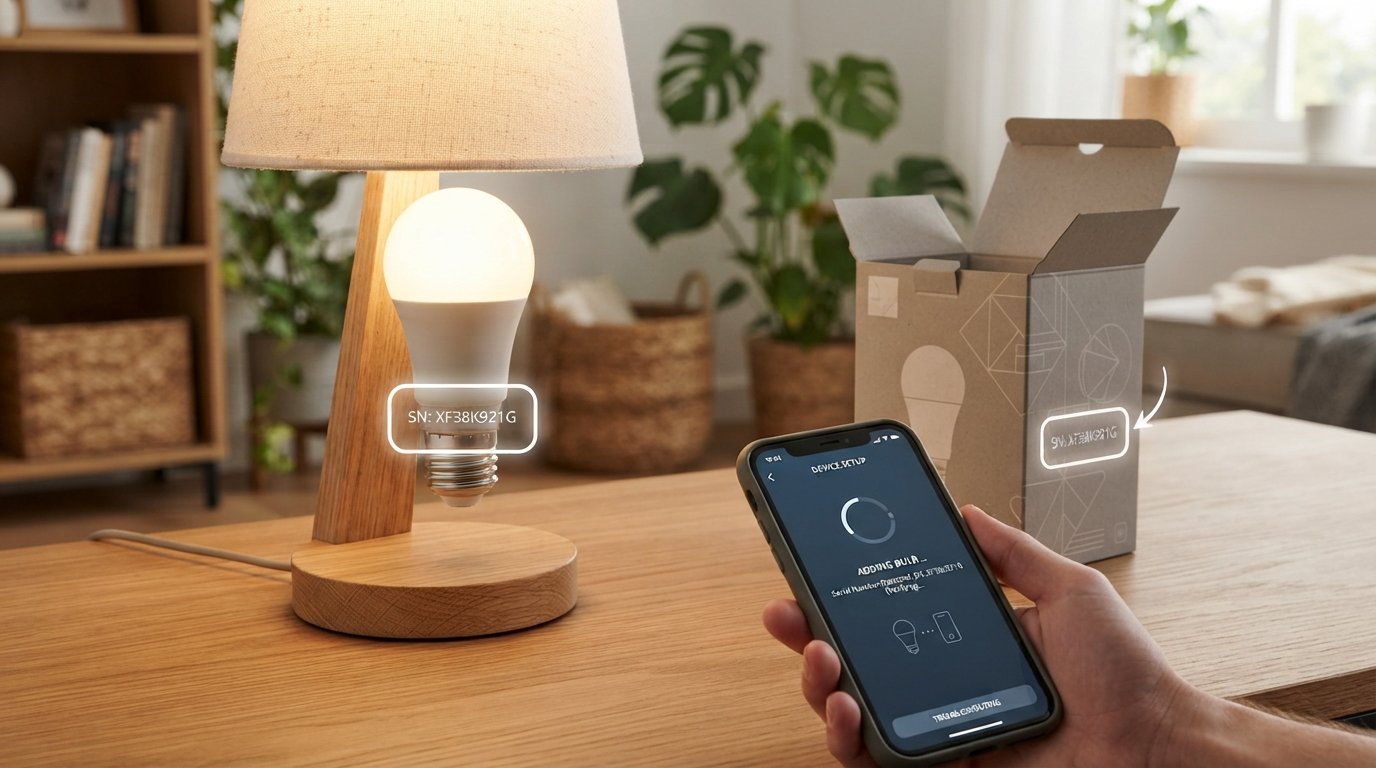
If you are trying to set up a Philips Hue bulb and the Hue app cannot automatically detect it, you may be asked to enter the Hue light bulb serial number manually. The serial number can also be useful when troubleshooting, resetting, or identifying certain Hue lights.
The good news is that finding a Philips Hue bulb serial number is usually straightforward once you know where to look.
Philips Hue’s current setup instructions primarily use QR-code scanning for newer products. However, if a product does not have a QR code, the Hue app provides an option to add it by searching or entering its serial number.
In this guide, you’ll learn:
- Where to find the Hue light bulb serial number
- What a Hue serial number looks like
- How many characters it has
- How to enter a Hue serial number in the app
- How to use the serial number to reset a Hue light
- What to do when the serial number is missing
- The difference between a Hue serial number, model number, and QR code
- How to troubleshoot a Hue bulb that won’t connect
- Common questions about Philips Hue serial numbers
Where Is the Hue Light Bulb Serial Number?
The Philips Hue serial number is generally printed directly on the Hue light or on a label/tag associated with the product.
For some Hue products, you may find the serial number:
- On the light itself
- On the rear or bottom of the device
- On a label attached to the power cord
- On the product packaging
- In product documentation
Philips Hue support specifically states that the serial number of a Hue light is usually printed on the light itself or, in some cases, on a tag attached to the cord.
Look for markings such as:
SN: followed by a short code
or a label that identifies the number as the HUE serial number.
Check the Physical Bulb First
If you’re holding a standard Hue smart bulb, inspect the bulb carefully.
Check:
- Around the base of the bulb
- Near the electrical fitting
- Around the lower portion of the housing
- Any small printed label
- The product packaging if the bulb is difficult to inspect
Use a flashlight if the characters are very small.
Important: Do not confuse the serial number with the electrical specifications printed on the bulb, such as voltage, wattage, or color-temperature information.
What Does a Philips Hue Serial Number Look Like?
For the serial-number entry method described by Philips Hue, the code consists of six characters. Philips Hue says these characters can be numbers from 0–9 or letters from A–F. It also notes that the letter O is not used; if you see what looks like an O, it should be the number 0.
For example, a serial number might have a format similar to:
A3F820
or:
04B91C
These are examples of the format only, not actual Hue serial numbers.
Be Careful With Similar Characters
Small printed characters can be difficult to read.
Pay particular attention to:
- 0 vs O
- 1 vs I
- 5 vs S
- 8 vs B
For the six-character Hue serial-number entry described by Philips Hue, remember that O is not used.
How to Find the Hue Serial Number on the Bulb
If you specifically need the Hue light bulb serial number, use this process.
Step 1: Turn Off the Light
Turn the Hue bulb off before removing it from the fixture.
If the bulb is hot, allow it to cool before handling it.
Step 2: Remove the Bulb Carefully
If necessary, remove the bulb from the lamp or socket according to the fixture’s instructions.
Do not force the bulb or twist it excessively.
Step 3: Inspect the Bulb
Look carefully around the bulb housing and base.
Use a flashlight to locate a small printed code.
Step 4: Look for the Serial Number
You are looking for a short code associated with the Hue serial number.
If the number isn’t visible on the bulb, check the cord, tag, packaging, or documentation depending on the type of Hue product.
Step 5: Record the Number
Write the code down exactly as printed.
It can be useful to take a clear photograph of the label so you don’t have to repeatedly remove the bulb.
How to Add a Philips Hue Bulb Using Its Serial Number
A serial number can be particularly useful when the Hue system cannot automatically locate your light.
Philips Hue’s current setup process prioritizes scanning the product’s QR code. If the product does not have a QR code, the app provides a No QR code option that allows you to search for the product or use its serial number.
A typical process is:
- Open the Philips Hue app.
- Go to your Home screen.
- Open the option to add a device.
- Select the appropriate room.
- Choose the option for a product without a QR code.
- Select the serial-number option when available.
- Enter the Hue serial number.
- Start the search.
- Power on the bulb if instructed.
- Complete the setup.
The exact wording and screen layout can change as the Hue app is updated.
Can You Add a Hue Bulb Without a Serial Number?
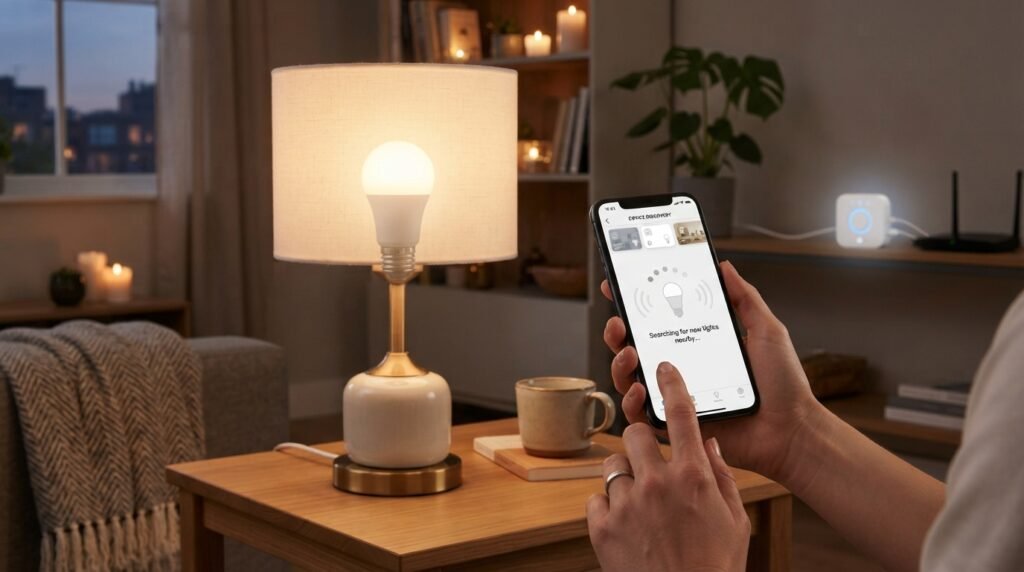
Yes, in many cases.
A serial number is not necessarily required for every Hue setup.
Newer Philips Hue products can use a QR code during setup. Philips Hue’s current instructions say to scan the QR code when adding bulbs and lamps. If a product does not have one, the app provides alternatives such as searching or entering the serial number.
So, if your Hue bulb has a QR code, you may not need to manually enter the serial number.
Hue Light Bulb Serial Number vs QR Code
The serial number and QR code are not the same thing.
| Feature | Hue Serial Number | QR Code |
|---|---|---|
| Format | Short alphanumeric code | Scannable square code |
| Entry | Can be typed manually | Usually scanned |
| Purpose | Identifying/adding certain Hue products | Fast product setup |
| Location | Product, tag, packaging, etc. | Product/package/instructions depending on product |
| Useful when | Automatic detection fails or product lacks QR code | Newer products with QR setup |
| Manual entry | Yes | Usually no |
Philips Hue’s current setup documentation emphasizes QR-code setup but retains serial-number-based setup for products without QR codes.
How to Use a Hue Serial Number to Reset a Light
One of the most useful reasons to find a Hue bulb serial number is factory resetting.
Philips Hue provides a serial-number reset method for compatible Hue lights.
According to Philips Hue, the process involves:
- Open the Hue app.
- Go to Settings.
- Select Lights.
- Tap the blue + button.
- Choose Use serial number.
- Enter the six-character serial number.
- Tap the blue + button.
- Tap Search.
The light should flash when the reset is successful and then appear in the Philips Hue app.
Why Would You Factory Reset a Hue Bulb?
A factory reset can be useful if:
- The bulb won’t connect
- You are moving it to another Hue Bridge
- You bought a used Hue bulb
- The bulb is associated with another setup
- The normal setup process isn’t working
- You want to return or sell the light
Philips Hue explains that a factory reset restores the light’s original settings and removes customized settings/data.
What If You Cannot Find the Hue Serial Number?
Don’t panic if the number isn’t immediately visible.
Try these locations.
1. Check the Bulb
Inspect the bulb housing and base under good lighting.
Some markings can be extremely small.
2. Check the Cord or Product Tag
Certain Hue products have the serial number on a tag attached to the cord rather than directly on the light.
3. Check the Original Packaging
Keep the original Hue packaging if possible.
Product identification information may be printed on the box or associated materials.
4. Look at the Product Documentation
Check the installation guide or documentation that came with the product.
5. Look for a QR Code
If your Hue product has a QR code, you may not need to find the serial number at all.
Philips Hue’s current setup instructions allow users to scan the QR code when adding compatible bulbs and lamps.
Hue Bulb Has a QR Code but No Visible Serial Number
This is not necessarily a problem.
Philips Hue has moved toward QR-code-based setup for its products. The current bulb and lamp setup instructions say users should scan the QR code during installation. If there is no QR code, the app provides an alternative method using the product’s serial number.
Therefore, if your bulb has a working QR code, start with the QR-code setup instead of spending a long time searching for a small printed number.
What If the Hue App Cannot Find the Bulb?
If entering the serial number does not solve the problem, check the basics.
Check the Power
Make sure the bulb is receiving power.
If the physical wall switch is off, the Hue app may not be able to communicate with the light.
Check Your Hue Bridge
If you’re using a Hue Bridge, verify that:
- The Bridge is powered
- Network connections are working
- The Bridge is connected to your network
- The Hue app can communicate with it
Philips Hue describes the Bridge as the hub that stores customizations and settings and enables features such as automations and away-from-home control.
Try the QR Code
If your product has a QR code, try scanning it through the Hue app instead of manually entering the serial number.
Check the Serial Number Again
Enter every character carefully.
Remember that Philips Hue says the six-character serial-number format used for this process can contain digits 0–9 and letters A–F, and the letter O is not used.
Can You Find a Hue Bulb Serial Number in the App?
This depends on the product, setup, and app information available.
The serial-number method described by Philips Hue is primarily presented as a way to add or reset a light when the normal setup process is not sufficient.
If your light is already connected and functioning, the most useful first step is generally to check its device information inside the current Hue app rather than assuming every version of the app exposes the physical serial number.
App menus can change with software updates, so the exact location may differ between versions.
Is the Hue Serial Number the Same as the Model Number?
No.
A model number identifies the product model or type, while a serial number identifies an individual product or production-related unit.
For example, a model number can help determine:
- Which Hue bulb you have
- Its product family
- Supported features
- Compatible documentation
- Product-specific specifications
The serial number is used for product identification and certain setup/reset procedures.
Philips support generally distinguishes model/type numbers from serial numbers and explains that product identification information can be located on the product, packaging, or documentation depending on the product category.
Does Every Philips Hue Bulb Have a Serial Number?
Hue products have product-identification information, but the exact location and setup method can vary by product generation and type.
For current Hue products, QR-code setup is increasingly important. Philips Hue specifically says that if a product does not have a QR code, users can choose No QR code and add it by searching or using its serial number.
This means you should not assume that every Hue product will require manual serial-number entry.
Hue Serial Number Not Working: Common Problems
If the serial number isn’t accepted, work through these possibilities.
Incorrect Character
Double-check every character.
A small printed code can be easy to misread.
O vs 0
This is especially important.
Philips Hue states that the six-character serial number used for this process does not contain the letter O.
Wrong Product Code
Make sure you’re entering the Hue serial number rather than:
- Model number
- Product number
- Barcode
- QR-code data
- Electrical rating
- Manufacturing information
Bulb Is Not Powered
Turn the light on and make sure it has power before trying to add it.
Product Already Exists
If the light is already associated with a Hue system, the app may require you to remove, reset, or otherwise reconfigure it before adding it elsewhere.
App Version Difference
The Hue app changes over time.
If the menu shown in an older guide does not match your app, look for the current Add devices, Settings, or Devices options.
Can a Used Philips Hue Bulb Be Reset With Its Serial Number?
Yes, the serial-number factory-reset procedure can be useful when dealing with a previously configured Hue light.
A factory reset is designed to restore the light to its original settings, making it easier to configure it with another Hue setup. Philips Hue specifically lists moving a light to another Bridge and selling or giving away a light among situations where a factory reset can be useful.
If you purchased a used Hue bulb, having its serial number available can therefore be helpful during setup.
Hue Light Bulb Serial Number and Compatibility
The serial number itself does not tell you everything about a bulb’s capabilities.
If you’re trying to determine whether a bulb supports a particular feature, look for its:
- Product/model number
- Product generation
- Hue compatibility information
- QR code
- Packaging information
- Official product documentation
The serial number is primarily an identification/setup tool rather than a complete specification sheet.
Hue Bulb Serial Number: Quick Checklist
If you’re having trouble locating or using your Hue serial number, follow this checklist:
- Turn off the bulb before handling it
- Inspect the bulb and base
- Check any attached tag
- Check the power cord if applicable
- Check the original packaging
- Look for a QR code
- Open the Philips Hue app
- Select the option to add a device
- Use the QR code if available
- Use the serial-number option if the product has no QR code
- Check every character before submitting
- Remember that O is not used in the six-character serial-number format described by Hue
- Consider a factory reset if the bulb was previously configured
Frequently Asked Questions
1. Where is the serial number on a Philips Hue bulb?
The Hue serial number is usually printed on the light itself. Depending on the product, it can also be found on a tag attached to the cord or in associated product materials.
2. How many digits is a Hue serial number?
For the serial-number method described by Philips Hue, the code contains six characters, consisting of numbers 0–9 and letters A–F.
3. Does a Hue serial number contain the letter O?
No. Philips Hue specifically states that the letter O is not used in the six-character serial number; what may look like O should be the number 0.
4. Do I need the serial number to add a Hue bulb?
Not always. Current Philips Hue setup instructions prioritize QR-code scanning. If the product does not have a QR code, you can use the alternative search or serial-number method.
5. Can I reset a Hue bulb with its serial number?
Yes. Philips Hue provides a serial-number method for factory resetting compatible Hue lights through the Hue app.
6. What if my Hue bulb has no QR code?
Use the No QR code option in the Hue app and follow the available search or serial-number setup process.
7. What if I lost the Hue box?
You may still be able to add the bulb. Check the bulb itself and any cord/tag for the serial number. If it has a QR code, you can use that instead.
8. Can I use the serial number to identify my Hue bulb?
The serial number can help identify an individual Hue product, but the model/product number is generally more useful when you need detailed specifications or product-specific documentation.
9. Why won’t my Hue bulb connect after entering the serial number?
Check that the bulb has power, verify every character in the serial number, check whether the bulb is already associated with another Hue setup, and try the current QR-code or device-addition process if available.
Final Thoughts
Finding the Hue light bulb serial number is usually simple once you know what you’re looking for. Check the bulb itself first, followed by any cord tag, packaging, or product documentation. Philips Hue’s current setup system also relies heavily on QR codes, so you may not need to manually enter a serial number if your product has one. For Hue products that use the serial-number method, Philips Hue describes a six-character code using numbers 0–9 and letters A–F, with the letter O excluded. The serial number can be especially useful when manually adding or factory-resetting a Hue light.
If your Hue bulb is not connecting, don’t immediately assume the bulb is defective. Check its power, inspect the identification information carefully, use the current Hue app setup process, and try the QR-code method when available. With the correct Philips Hue serial number, you can often get past setup and identification problems much more quickly.
Related Post
- Lamp Bulb Drawing – Easy Step-by-Step Guide to Drawing a Lamp and Light Bulb!
- Light Bulb Base Types – Complete Guide to Bulb Bases, Sizes & Socket Types!
- Light Bulb Guide Size – Complete Guide to Bulb Sizes, Shapes, Bases & Codes!
About the Author