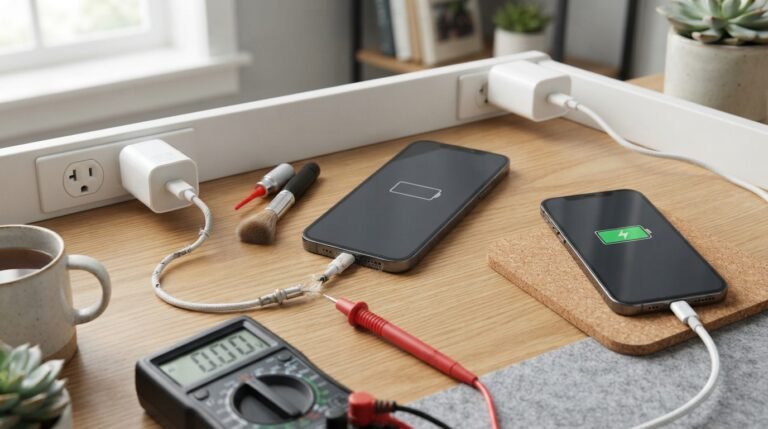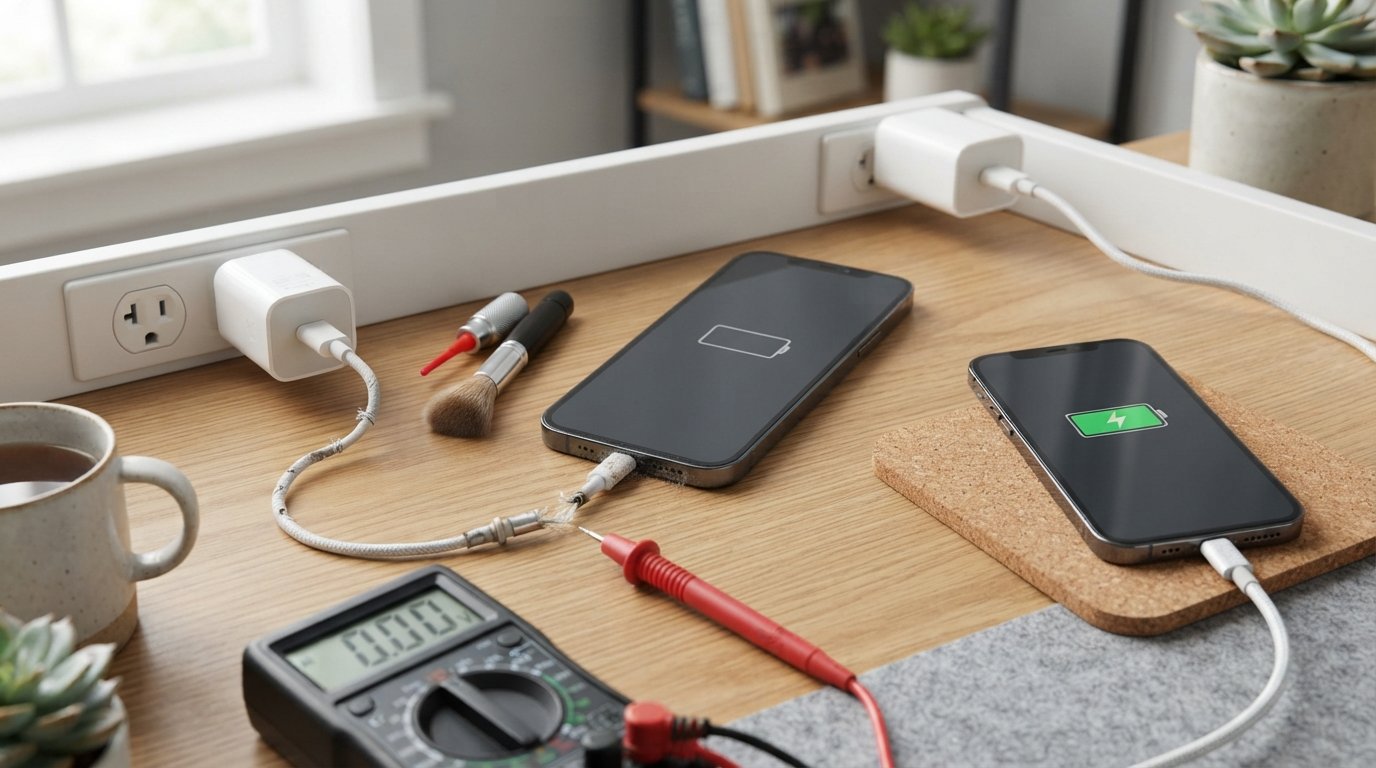
If your phone is not charging, don’t assume the battery is dead or the phone needs an expensive repair. A failed cable, damaged charger, blocked charging port, moisture, excessive temperature, software problem, or worn battery can all cause charging problems.
The fastest way to find the cause is to troubleshoot the entire charging path rather than repeatedly plugging the same cable into the phone.
Start with these checks:
- Try a different wall outlet.
- Try another compatible charging cable.
- Try another compatible power adapter.
- Check the charging port for visible debris or moisture.
- Restart the phone.
- If the phone is hot, let it cool before charging again.
- If the battery is completely dead, leave it connected to a known-good charger for a while before trying to turn it on.
- If it still won’t charge, determine whether the problem is the port, battery, or internal hardware.
Apple recommends checking the power source, cable, adapter, port, restarting the device and allowing time for a deeply discharged iPhone to charge before seeking service. Google provides a similar troubleshooting sequence for Android devices.
Why Is My Phone Not Charging?
A phone may stop charging for several reasons.
The most common are:
- Faulty charging cable
- Defective power adapter
- Bad wall outlet
- Dust or lint in the charging port
- Moisture in the port
- Damaged charging port
- Software glitch
- Battery degradation
- Excessive heat or cold
- Charging or battery-protection settings
- Unsupported charging accessory
The important part is identifying which part of the charging system has failed.
Think of charging as a chain:
Wall outlet → power adapter → charging cable → phone port → charging circuitry → battery
If any part of that chain fails, the phone may not charge normally.
Quickest Way to Fix a Phone That Won’t Charge
Before trying complicated solutions, perform these tests in order.
1. Try another wall outlet
Plug the charger directly into another known-working wall outlet.
Avoid using a damaged extension lead, loose power strip, or questionable adapter during troubleshooting.
2. Try another cable
Use a known-good cable that is compatible with your phone.
A cable can look perfectly normal externally while having an internal fault.
3. Try another power adapter
Connect the known-good cable to another compatible charger.
If the phone immediately begins charging, the original adapter may be the problem.
4. Check the charging port
Look inside the port under good lighting.
Pocket lint, dust and other debris can interfere with the connection.
Do not force anything into the port. Manufacturer guidance differs by device, and Google specifically advises not putting objects into a Pixel USB-C port when troubleshooting liquid/debris alerts.
5. Restart the phone
A temporary software problem can interfere with charging behavior.
Restart the phone normally if it still responds.
6. Check temperature
If the phone is unusually hot, disconnect it and allow it to cool before trying again.
Phones can reduce or stop charging when their internal temperature becomes too high. Google notes that excessive device temperature can result in an inability to charge.
7. Leave a completely drained phone connected
If the battery has been completely depleted, the phone may need time before the display responds.
Google recommends allowing a deeply discharged Android device to charge for at least 30 minutes in relevant troubleshooting situations.
Apple likewise recommends allowing an iPhone to charge for 30 minutes during its troubleshooting sequence before proceeding to another restart attempt.
1. Check the Charging Cable
A damaged cable is one of the first things to investigate.
Repeated bending, twisting, pulling or stress near the connector can eventually damage the conductors inside the cable.
Look for:
- Frayed insulation
- Exposed wires
- Bent connector
- Burn marks
- Loose connector housing
- Cable that only works in a particular position
- Intermittent charging
A cable doesn’t have to look visibly broken to be faulty.
How to Test the Cable
The simplest test is to use a known-good compatible cable with your phone.
You can also test the original cable with another compatible device.
If the second device also refuses to charge, the cable becomes a strong suspect.
Apple specifically recommends checking charging cables and adapters for damage and avoiding damaged accessories.
2. Check the Power Adapter
The charger brick itself can fail.
This can happen because of:
- Internal component failure
- Physical damage
- Excessive heat
- Loose connector
- Poor-quality construction
- Electrical faults
How to Test the Charger
Try your phone with:
Known-good phone + known-good cable + different compatible adapter
If charging works normally, the original adapter may be responsible.
Google similarly recommends trying another power adapter and cable when troubleshooting an Android phone that won’t charge.
3. Try a Different Wall Outlet
Sometimes the phone and charger are perfectly fine.
The problem may simply be the power source.
Try another wall outlet in a different location.
If the charger works from the second outlet, investigate the original outlet or power strip rather than replacing your phone.
4. Check the Charging Port
The charging port is one of the most important parts to inspect.
Phones spend a lot of time in:
- Pockets
- Bags
- Cars
- Desks
- Bedrooms
- Work environments
Small particles can eventually accumulate around the connector.
Android Authority recently highlighted how compacted pocket lint can prevent a USB-C cable from seating properly, sometimes causing a cable to sit at an angle or fall out.
Signs of a Dirty Charging Port
You may notice:
- Cable doesn’t click into place normally
- Cable feels loose
- Charging starts and stops
- Phone charges only when the cable is held at an angle
- Some cables work while others don’t
- Fast charging no longer works
- Phone doesn’t recognize the charger consistently
How to Safely Inspect the Port
Power the phone down if appropriate and use a light to inspect the opening.
Look for:
- Lint
- Dust
- Dirt
- Moisture
- Corrosion
- Bent or damaged components
Do not force an object into the connector.
Current manufacturer instructions are particularly cautious about foreign objects and moisture. Apple says not to insert objects such as cotton swabs or paper towels into a wet connector, while Google tells Pixel users not to put anything into the USB-C port when handling liquid/debris alerts.
If the port appears damaged or the cable no longer fits correctly, professional inspection is safer than aggressive DIY cleaning.
5. Check for Water or Moisture
If your phone recently got wet, stop trying to charge it through the port.
Modern phones can detect moisture and disable wired charging to reduce the risk of electrical damage.
Apple explains that charging through a wet connector can corrode connector pins and potentially cause permanent connectivity problems.
Google similarly provides a “Liquid or debris in USB port” warning on supported Pixel devices.
What to Do if the Charging Port Is Wet
- Disconnect the charging cable.
- Keep the phone away from additional moisture.
- Position the port downward if appropriate.
- Allow the phone and connector to dry naturally in a dry area with airflow.
- Do not reconnect the cable until the connector is dry.
Apple says an affected iPhone may need considerably longer than the initial 30-minute wait to dry fully and advises allowing up to 24 hours if the warning continues.
Do Not Use Rice
Putting a wet phone in rice is an old internet remedy, but Apple specifically advises against it because small particles can enter and damage the device.
Do Not Use External Heat
Don’t use:
- Hair dryers on high heat
- Heat guns
- Radiators
- Other intense external heat sources
Apple explicitly advises against external heat for drying a wet connector.
6. Restart the Phone
A charging problem isn’t always physical.
The operating system controls many aspects of the charging process, including battery management and thermal protection.
A temporary software fault can therefore make the phone behave as if it isn’t charging correctly.
If the Phone Still Turns On
Perform a normal restart.
Then reconnect the charger and check whether charging resumes.
If the Phone Is Frozen
You may need a force restart.
The exact button combination depends on the manufacturer and model, so use the procedure provided by your phone manufacturer rather than assuming every Android or iPhone uses the same method.
For example, Apple provides different force-restart procedures depending on the iPhone generation.
Google likewise provides specific button-based troubleshooting for Android devices.
7. What If the Phone Says It’s Charging but the Battery Isn’t Increasing?
This is a different symptom from having no charging response at all.
If you see a charging icon but the percentage remains unchanged, possible causes include:
- Weak charger
- Faulty cable
- Heavy battery usage
- High temperature
- Battery degradation
- Software problem
- Charging limitation
- Damaged charging circuitry
Start by testing a different cable and compatible adapter.
Then stop using demanding applications while troubleshooting.
If the phone is very warm, let it cool.
A phone may also deliberately limit charging under certain conditions to protect battery health or the device.
8. Why Is My Phone Charging Slowly?
Slow charging doesn’t necessarily mean the charger is broken.
Possible causes include:
- Low-power adapter
- Incompatible cable
- Dirty port
- High device temperature
- Battery protection behavior
- Heavy app usage
- Battery aging
- Wireless charging alignment
- Charging protocol limitations
Android Authority notes that a worn or dirty charging port can cause poor electrical contact and slower charging.
Try This
For a quick test:
- Stop intensive apps.
- Remove unnecessary accessories.
- Connect to a compatible wall charger.
- Try another cable.
- Check the port.
- Let the phone cool if necessary.
9. Check the Phone’s Temperature
Temperature can have a major effect on charging.
If a phone becomes too hot, its charging behavior may be reduced or stopped temporarily.
Google’s current guidance says an excessively hot device may become unable to charge while it regulates its temperature.
If Your Phone Is Hot
Disconnect it from power if appropriate.
Move it away from:
- Direct sunlight
- Hot cars
- Radiators
- Heating vents
- Poorly ventilated spaces
Let it return toward normal temperature before trying again.
Do not attempt to cool a hot phone using extreme methods such as ice or liquid.
10. Check for a Charging Limit or Battery Protection Feature
Sometimes a phone is charging normally even though the percentage doesn’t reach 100%.
For example, Apple explains that Optimized Battery Charging can delay charging beyond 80% under certain circumstances. Some newer iPhones also provide a configurable Charge Limit.
Therefore:
Stopping at 80% does not automatically mean the phone is broken.
Check your phone’s battery or charging settings before assuming there is a hardware problem.
Android manufacturers also offer their own battery-protection features, so the exact behavior varies by model.
11. Check the Battery
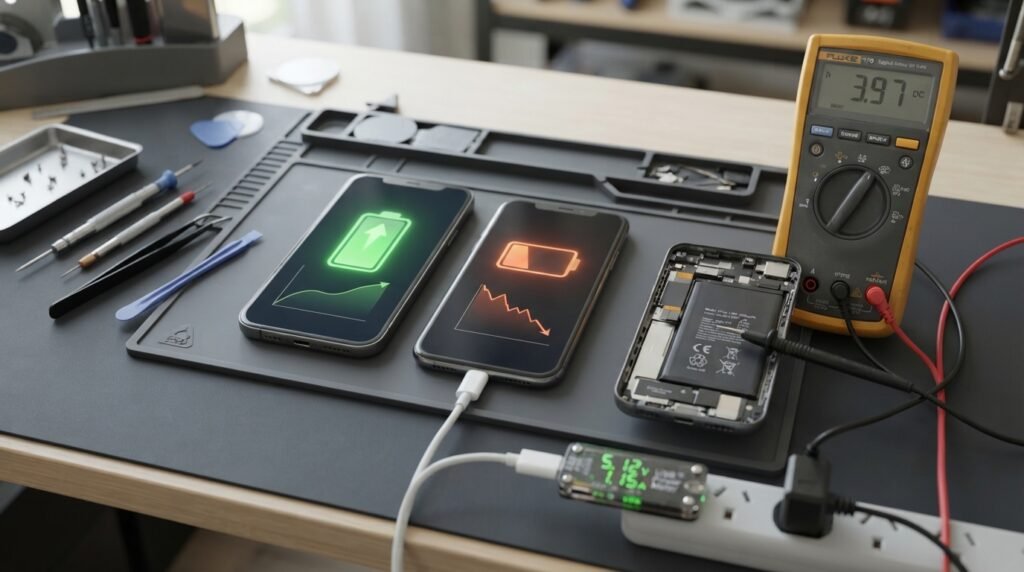
Smartphone batteries naturally lose capacity over time.
A heavily worn battery may show symptoms such as:
- Very short battery life
- Unexpected shutdowns
- Extremely slow charging
- Percentage behaving strangely
- Phone shutting down while showing battery remaining
- Difficulty maintaining charge
If the phone has been used for several years and charging problems have gradually become worse, battery degradation becomes more plausible.
Warning Sign: Swollen Battery
A visibly swollen battery is a safety issue, not a normal charging problem.
Signs can include:
- Screen lifting away from the frame
- Back cover separating
- Unusual bulging
- Device becoming abnormally hot
- Chemical smell
Stop using and charging a phone with suspected battery swelling and seek professional service.
Do not puncture, squeeze or attempt to replace a swollen lithium-ion battery yourself.
12. Try Wireless Charging if Your Phone Supports It
Wireless charging can help determine whether the wired charging path is the problem.
If:
Wireless charging works but USB-C/Lightning charging does not
the battery itself may not be the only suspect. The wired port, cable, accessory or charging circuitry may require investigation.
Apple notes that compatible iPhones can still be charged wirelessly when wired charging is unavailable because of liquid detection, provided the appropriate conditions are met.
Wireless charging is therefore useful as a diagnostic clue, not just an alternative charging method.
13. Try Charging With a Computer
If a wall charger doesn’t seem to work, a powered computer USB port can sometimes help with diagnosis.
Google’s Android troubleshooting instructions include connecting a non-charging phone to a powered computer with a known-good cable and allowing time for the device to respond.
However, computer USB ports may provide less power than a dedicated phone charger, so this is primarily a troubleshooting step rather than a recommendation for fast charging.
How to Fix an iPhone That Won’t Charge
For an iPhone, Apple recommends a specific troubleshooting sequence.
Step 1: Connect to a known power source
Try:
- Wall outlet
- Compatible power adapter
- Known-good charging cable
Step 2: Restart the iPhone
A temporary software problem can sometimes prevent normal charging behavior.
Step 3: Inspect the cable and adapter
Don’t use visibly damaged accessories.
Step 4: Try another outlet
This eliminates the wall power source as the problem.
Step 5: Check the charging port
Look for debris or signs of damage.
Step 6: Leave it charging
If the battery is deeply discharged, allow it time to recover.
Step 7: Force restart
Use the correct force-restart method for your iPhone model.
Step 8: Seek service
If the iPhone still won’t charge after these checks, Apple recommends service.
How to Fix an Android Phone That Won’t Charge
Android phones vary by manufacturer, but the general diagnostic process is similar.
Try another cable
Use a compatible known-good cable.
Try another adapter
Use a compatible charger appropriate for your device.
Try another outlet
Make sure the wall power source works.
Check the USB-C port
Look for moisture, lint or physical damage.
Restart the phone
A restart can eliminate temporary software problems.
Allow a deeply discharged phone to charge
Google recommends giving a fully depleted Android device time to charge before attempting to restart it.
Use the manufacturer’s force-restart method
Button combinations differ between Android brands and models.
Seek professional support if necessary
If the port is physically damaged, burned, corroded or remains nonfunctional after basic troubleshooting, professional service may be necessary. Google specifically recommends service for damaged USB-C ports.
Why Does My Phone Only Charge at an Angle?
This is an important warning sign.
If your phone charges only when:
- The cable is bent
- The connector is pushed sideways
- You hold the cable upward
- You press the connector into the phone
there may be:
- Debris in the port
- A worn charging port
- Damaged connector contacts
- Damaged cable
- Mechanical damage
Don’t keep forcing the cable into position.
A temporary connection can become a permanent hardware failure if the port or contacts are damaged further.
Android Authority specifically describes a loose/off-angle USB-C connection as a potential sign of compacted debris, while a physically damaged port may require repair.
Why Does My Phone Charge Then Stop?
Possible causes include:
- Excessive temperature
- Battery protection
- Poor cable connection
- Dirty port
- Damaged cable
- Software issue
- Battery degradation
- Charging limit
Start with the simplest tests.
Try a different cable and adapter, check the port, and see whether the phone is unusually warm.
If charging repeatedly stops at the same percentage, check the phone’s battery-protection and charge-limit settings.
Why Won’t My Phone Charge After Getting Wet?
If the phone detects moisture, wired charging may be intentionally disabled.
This is a protective measure.
Do not repeatedly plug and unplug the cable to see whether it starts charging.
Instead:
- Disconnect the charger.
- Keep the connector dry.
- Allow the phone to dry naturally.
- Avoid external heat.
- Don’t put the phone in rice.
- Wait until the device indicates it is safe to reconnect, where applicable.
Apple says a wet connector can require extended drying time and specifically warns against heat, compressed air, foreign objects and rice.
How to Tell if the Charging Port Is Damaged
A damaged port may show several symptoms:
- Cable feels unusually loose
- Connector won’t seat correctly
- Charging works only at an angle
- Multiple known-good cables fail
- Port looks bent
- Visible corrosion
- Burn marks
- Physical deformation
- Charging repeatedly disconnects when the phone moves
If the port is visibly damaged, don’t try to bend the contacts back into place.
A professional repair technician can inspect the port and determine whether it needs cleaning, repair or replacement.
Phone Still Won’t Charge? Use This Diagnostic Decision Tree
Follow this order:
Phone completely dead?
Yes → Connect a known-good charger and cable → leave it connected for a while → attempt the manufacturer’s restart procedure.
Still nothing?
→ Try another adapter and wall outlet.
Still nothing?
→ Inspect the charging port for moisture or visible debris/damage.
Phone recently got wet?
Yes → Disconnect the charger and allow the device/port to dry completely.
Cable feels loose?
Yes → Test another cable and inspect the port.
Another cable works?
Yes → Replace the original cable.
Multiple cables fail?
→ Suspect the adapter, port, battery or internal hardware.
Wireless charging works?
Yes → The battery may still be functional; investigate the wired charging path.
Phone is extremely hot?
Yes → Disconnect power and let it cool before further charging attempts.
Nothing works?
→ Professional diagnosis is the next step.
What Not to Do When Your Phone Won’t Charge
Avoid these common mistakes.
Don’t force the cable
If the connector doesn’t fit naturally, stop.
Don’t use a damaged charger
Cracked, bent or visibly damaged chargers and cables should be replaced.
Don’t charge through a wet port
Moisture can create serious electrical and corrosion problems.
Don’t use metal objects to scrape the port
Metal can damage delicate contacts and potentially create an electrical short.
Don’t use heat to dry a wet phone
Manufacturers specifically warn against external heat for drying connectors.
Don’t use rice
It is not a safe substitute for proper drying. Apple specifically advises against it.
Don’t repeatedly bend the cable
If the phone only charges when the connector is held at an angle, investigate the cable or port instead.
When Should You Stop Troubleshooting?
You should consider professional service when:
- Several known-good chargers fail
- The port is visibly damaged
- The port is burned or corroded
- The phone has liquid damage
- The phone has a swollen battery
- The phone becomes dangerously hot
- The phone repeatedly stops charging
- The device won’t respond after the recommended troubleshooting steps
- Charging works only when pressure is applied to the connector
At that point, repeatedly experimenting with chargers is unlikely to solve the underlying hardware problem.
Frequently Asked Questions
Why is my phone not charging even though it is plugged in?
The most common possibilities include a bad cable, defective charger, dirty or damaged charging port, software problem, excessive temperature, moisture, or battery degradation.
Start by testing a different compatible cable and charger.
Why does my phone say charging but the percentage isn’t increasing?
The charger may not be providing enough usable power, the phone may be consuming power faster than it receives it, or the device may be limiting charging because of temperature, battery protection or another condition.
Why is my phone charging so slowly?
A weak adapter, incompatible cable, dirty port, high temperature, battery degradation or heavy phone usage can all contribute to slow charging.
How do I clean a phone charging port?
First check your manufacturer’s instructions. Charging ports are delicate, and current Apple and Google guidance is conservative about inserting objects into them. For wet connectors, do not insert foreign objects, use heat or use rice.
Why does my phone only charge at a certain angle?
A loose cable connection can be caused by debris, cable damage or a worn/damaged charging port. Don’t continue forcing the connector into different positions.
Why won’t my phone charge after water exposure?
The phone may have detected moisture and disabled wired charging to protect the device. Disconnect the cable and allow the phone and connector to dry completely before trying again.
Why does my phone stop charging at 80%?
Some phones intentionally limit charging to protect battery longevity. Apple, for example, uses Optimized Battery Charging and provides Charge Limit functionality on supported iPhones.
Can a software update cause charging problems?
Software can affect charging management, so a temporary software bug can sometimes interfere with charging. Restarting and keeping the operating system updated are reasonable troubleshooting steps.
How do I know if my charging cable is bad?
Try the cable with another compatible device or replace it temporarily with a known-good cable. If the replacement works, the original cable is likely the problem.
How do I know if my charging port is bad?
If several known-good cables and chargers fail, the connector is loose or physically damaged, or charging works only when the cable is held at an angle, the port may need professional inspection.
Can I charge my phone wirelessly if the charging port doesn’t work?
If your phone supports wireless charging, yes, wireless charging may allow you to power the phone without using the damaged wired port. It can also be useful as a troubleshooting clue.
Should I keep charging a phone that is getting very hot?
No. If the phone becomes excessively hot, disconnect it from power and let it cool. Google specifically advises disconnecting an overheated device and moving it to a cooler location.
Final Thoughts
A phone that won’t charge doesn’t automatically mean the battery or motherboard has failed.
Start with the simplest parts of the charging chain: outlet, adapter, cable and port. Then consider moisture, temperature, software and battery condition.
The most useful diagnostic rule is:
Change one variable at a time.
Try another outlet. Then another cable. Then another compatible adapter. Check the port. Restart the phone. Consider temperature and moisture. This makes it much easier to identify the actual cause.
If the phone still refuses to charge after testing known-good accessories, or if the charging port or battery shows physical damage, stop experimenting and have the device professionally inspected.
For most users, that approach is safer, faster and more useful than repeatedly plugging the same faulty charger into a phone and hoping it starts working.
Related Post
- Charging Nintendo Ds – Complete Guide to Chargers, USB Charging, Battery & Troubleshooting!
- Dodge Charger 2014 – Complete Guide to Specs, Trims, MPG, Reliability, Problems & Used Buying!
- Dodge Charger 2016 – Specs, Trims, Engines, Reliability & Used Buying Guide!
About the Author