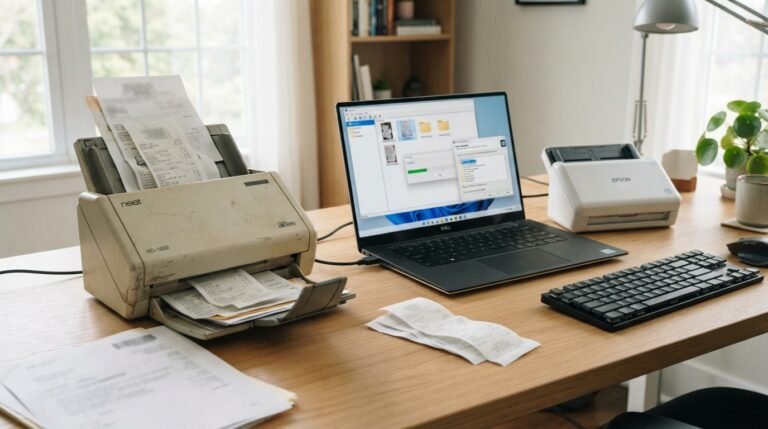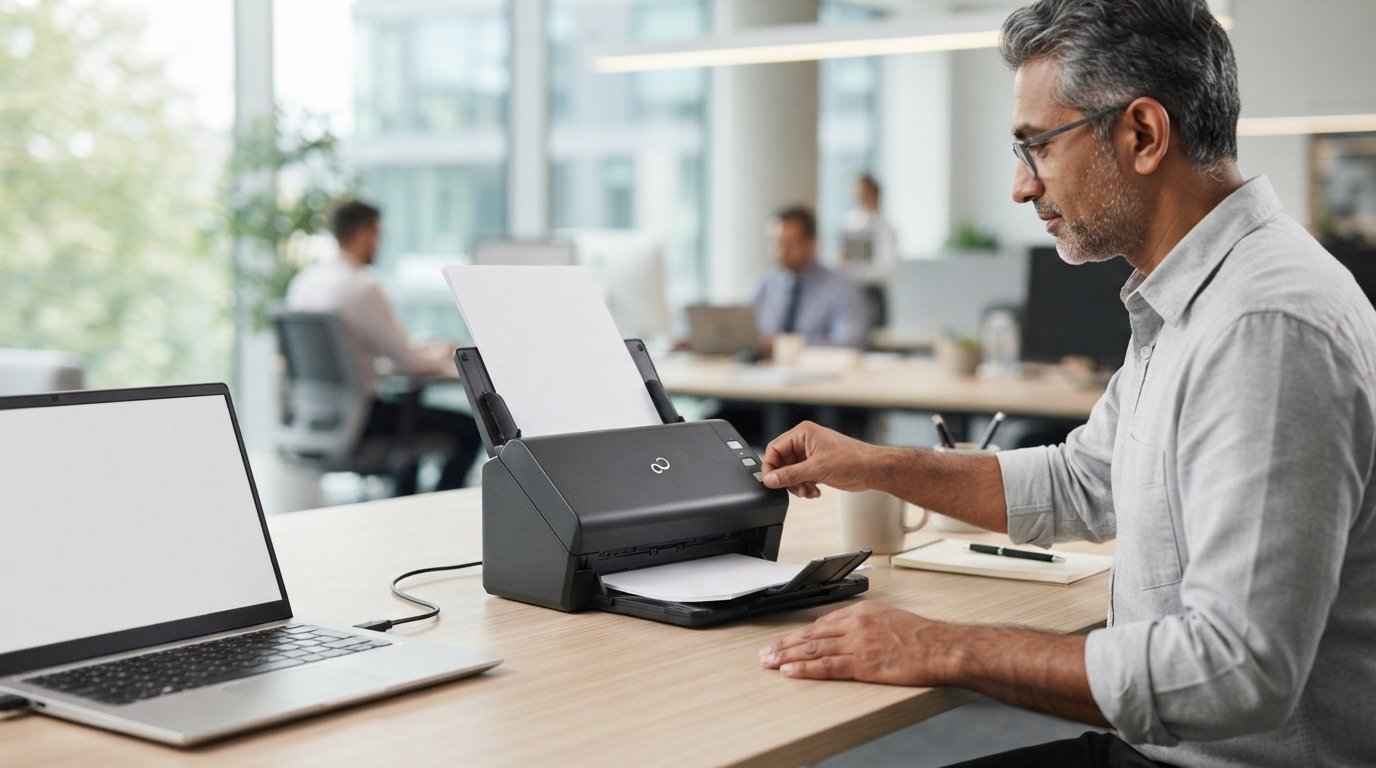
The Fujitsu fi-7160 scanner is a professional document scanner designed for offices, businesses, government departments, healthcare organizations, and other workplaces that need to digitize large numbers of documents. It combines fast scanning, automatic document feeding, duplex scanning, and reliable paper handling in a compact desktop design.
Whether you want to scan invoices, contracts, receipts, forms, reports, or other business documents, the Fujitsu fi-7160 is built for regular document-scanning workloads.
In this guide, we will explain the Fujitsu fi-7160 scanner, including its features, scanning speed, resolution, automatic document feeder, duplex scanning, software compatibility, setup process, maintenance, common problems, and frequently asked questions.
What Is the Fujitsu fi-7160 Scanner?
The Fujitsu fi-7160 is a high-speed duplex document scanner intended primarily for business and professional environments. It uses an automatic document feeder (ADF) to process multiple pages without requiring users to place each sheet on the scanner glass individually.
The scanner is particularly useful when organizations need to convert large quantities of paper documents into digital files.
Typical applications include:
- Office document scanning
- Invoice digitization
- Receipt scanning
- Contract archiving
- Records management
- Form processing
- PDF creation
- OCR workflows
- Document management systems
- Back-office data processing
The fi-7160 is designed for users who need more than a basic home scanner and want dependable paper feeding and fast two-sided scanning.
Fujitsu fi-7160 Scanner Features
Several features make the Fujitsu fi-7160 suitable for document-intensive environments.
High-Speed Document Scanning
One of the most important advantages of the Fujitsu fi-7160 scanner is its ability to scan documents quickly.
Instead of manually scanning individual pages, users can load a stack of documents into the automatic document feeder. The scanner can then process the pages continuously.
This makes it useful for offices where employees need to digitize large document batches.
Duplex Scanning
The fi-7160 supports duplex scanning, which means it can scan both sides of a document.
This is especially useful for:
- Double-sided contracts
- Two-sided forms
- Business records
- Reports
- Applications
- Financial documents
Duplex scanning can save significant time because users do not have to scan the front and back separately.
Automatic Document Feeder
The Fujitsu fi-7160 ADF allows multiple pages to be loaded into the scanner.
The automatic feeder helps streamline repetitive scanning tasks and reduces the amount of manual work required.
For offices with hundreds or thousands of pages to digitize, an ADF is much more practical than manually placing every document on a flatbed scanner.
Compact Desktop Design
Despite being designed for professional document scanning, the fi-7160 is intended for desktop use.
Its relatively compact design makes it suitable for:
- Office desks
- Reception areas
- Administrative departments
- Records rooms
- Small workstations
- Document processing stations
Fujitsu fi-7160 Scanning Speed
Scanning speed is one of the key factors to consider when choosing a business document scanner.
The Fujitsu fi-7160 is designed for high-volume document processing and is capable of scanning documents quickly in both simplex and duplex workflows.
Actual scanning speed can vary depending on factors such as:
- Resolution
- Paper size
- Color mode
- Computer performance
- Document condition
- Software settings
- File format
- Image processing features
For normal office documents, using practical resolution and image-processing settings can help maintain efficient scanning performance.
Does Higher Resolution Reduce Scanning Speed?
Generally, higher scanning resolutions require more image data to be processed.
For example, scanning an everyday office document at a moderate resolution is usually more practical than using an extremely high resolution intended for photographs or detailed archival work.
For most text documents, a moderate resolution is sufficient for readable digital copies and OCR.
Fujitsu fi-7160 Resolution
The scanner supports different scanning resolutions depending on the selected scanning mode and software.
Resolution is commonly expressed in DPI (dots per inch).
A higher DPI setting captures more image detail, but it can also increase:
- File size
- Processing time
- Storage requirements
For everyday documents, users generally do not need extremely high resolution.
Recommended Resolution for Documents
A practical resolution for many business documents is around 200–300 DPI, depending on the document type and whether OCR will be used.
Use higher resolution when you need to preserve small text, fine details, or other important image information.
Fujitsu fi-7160 Automatic Document Feeder
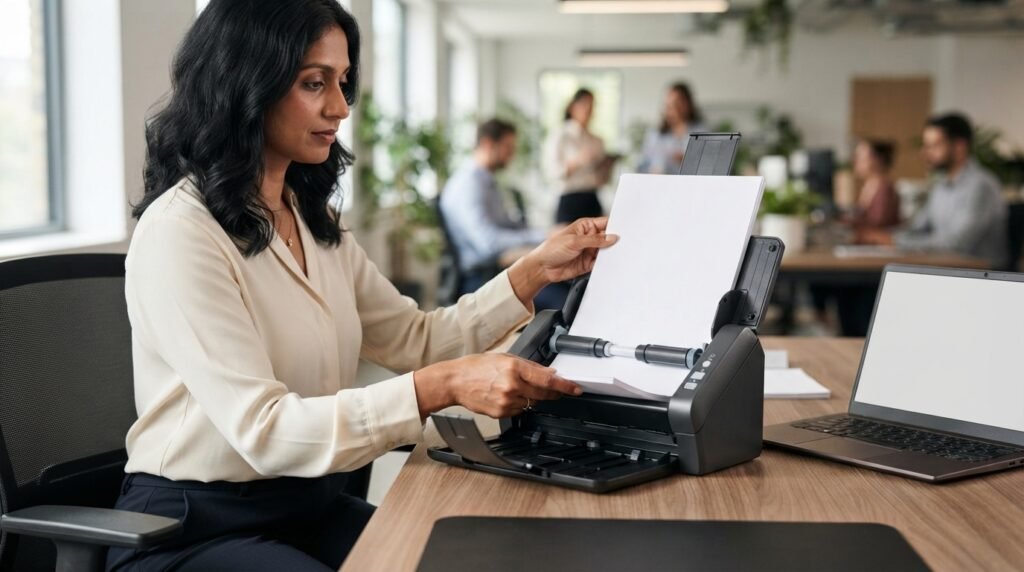
The automatic document feeder is one of the most useful components of the fi-7160.
Instead of feeding documents individually, users can place a batch of pages into the feeder and allow the scanner to process them automatically.
This makes the scanner useful for:
- Bulk scanning
- Archive digitization
- Office records
- Invoice processing
- Forms
- Multi-page reports
Preventing Paper Jams
Proper document preparation can significantly reduce paper-feed problems.
Before scanning:
- Remove staples and paper clips.
- Make sure pages are not heavily folded.
- Fan the stack before loading it.
- Align the paper edges.
- Avoid mixing unsuitable paper types in the same batch.
- Keep the scanner’s feed path clean.
Damaged, curled, sticky, or heavily creased documents may be more likely to cause feeding problems.
Fujitsu fi-7160 Paper Handling
Reliable paper handling is particularly important for business scanners.
Documents can vary considerably in:
- Thickness
- Size
- Condition
- Texture
- Length
The fi-7160 is designed for common office document workflows, but users should always check the scanner’s official specifications when working with unusual media.
For example, extremely thick documents, photographs, envelopes, cards, or damaged originals may require special handling.
What Types of Documents Can You Scan With the Fujitsu fi-7160?
The scanner is primarily designed for document scanning.
Common examples include:
Business Documents
You can use it to digitize:
- Contracts
- Invoices
- Purchase orders
- Reports
- Receipts
- Applications
- Forms
- Letters
Administrative Records
Organizations can also use a document scanner to convert paper records into searchable digital archives.
Multi-Page Documents
The automatic feeder and duplex capability make the fi-7160 particularly useful for multi-page documents.
Fujitsu fi-7160 USB Connection
The Fujitsu fi-7160 connects to a computer through USB.
A USB connection allows the scanner to communicate directly with the computer and transfer scanned documents to scanning software.
For reliable operation, users should make sure:
- The correct USB connection is being used.
- The scanner has power.
- The required drivers are installed.
- The scanning application recognizes the device.
- The USB cable and ports are functioning correctly.
If the scanner is not detected, restarting both the scanner and computer can sometimes resolve temporary communication problems.
Fujitsu fi-7160 Driver
The correct Fujitsu fi-7160 driver is important for communication between the scanner and computer.
Drivers allow the operating system and scanning software to communicate with the scanner’s hardware.
If you reinstall the scanner or move it to another computer, you may need to install the appropriate driver and software again.
Why Is the Fujitsu fi-7160 Driver Important?
Without the appropriate driver, the scanner may:
- Not appear in scanning applications
- Fail to start scanning
- Show connection errors
- Have limited functionality
- Produce unexpected behavior
Always use software intended for your specific scanner model and operating system.
Fujitsu fi-7160 Software
The scanner can be used with compatible scanning software to control scanning settings and create digital documents.
Depending on the software environment, users may be able to configure:
- Resolution
- Color mode
- Duplex scanning
- Page size
- File format
- Blank-page removal
- Image enhancement
- OCR
- Automatic document processing
Software can make a major difference in the overall document-scanning workflow.
Fujitsu fi-7160 OCR
OCR (Optical Character Recognition) converts text contained in scanned images into machine-readable text.
This is particularly useful when scanning:
- Contracts
- Invoices
- Reports
- Forms
- Archived records
Instead of having a document that is simply an image, OCR can make the text searchable and easier to work with.
For businesses managing large document archives, searchable PDFs can make it much easier to find information later.
Fujitsu fi-7160 PDF Scanning
The scanner can be used as part of a workflow for creating digital PDF documents.
PDF is popular for business documents because it can preserve the layout of scanned pages while making files easy to store and share.
When creating PDFs, users can configure their scanning software according to their needs.
For example, they may choose:
- Color PDF
- Grayscale PDF
- Black-and-white PDF
- Searchable PDF
The best option depends on the original document and the purpose of the digital archive.
Fujitsu fi-7160 Setup
Setting up the scanner generally involves several basic steps.
Step 1: Place the Scanner
Put the scanner on a stable, level surface with enough room for paper input and output.
Step 2: Connect the Power
Connect the scanner to an appropriate power source.
Step 3: Connect USB
Connect the scanner to the computer using the appropriate USB connection.
Step 4: Install the Driver
Install the compatible scanner driver and required software.
Step 5: Open Scanning Software
Launch your preferred compatible scanning application.
Step 6: Select the Scanner
Make sure the Fujitsu fi-7160 appears as the selected scanning device.
Step 7: Test Scan
Place a normal document in the feeder and perform a test scan.
If the document scans correctly, you can begin adjusting settings for your normal workflow.
How to Scan With the Fujitsu fi-7160
The basic scanning process is straightforward.
- Turn on the scanner.
- Prepare your documents.
- Remove staples and clips.
- Fan and align the pages.
- Place the documents into the ADF.
- Open compatible scanning software.
- Select the Fujitsu fi-7160.
- Choose resolution and color settings.
- Select simplex or duplex scanning.
- Start the scan.
- Review the scanned pages.
- Save the finished document.
For large batches, check the scanned pages periodically to make sure documents are feeding correctly.
Fujitsu fi-7160 Troubleshooting
Like any electronic device, the scanner can occasionally experience problems.
Fujitsu fi-7160 Is Not Scanning
If the scanner does not start scanning, check:
- Power connection
- USB connection
- Driver installation
- Scanning software
- Scanner selection
- Paper loading
- Error indicators
Restarting the scanner and computer can also help identify temporary software or connection problems.
Fujitsu fi-7160 Not Detected
If your computer does not recognize the scanner, check the USB cable and port first.
Then verify that the appropriate driver is installed.
If you recently updated the operating system, confirm that the scanner software and driver are compatible with your current environment.
Fujitsu fi-7160 Paper Jam
If a paper jam occurs:
- Stop the scanning process.
- Carefully remove the affected document.
- Check the paper path.
- Look for torn pieces of paper.
- Check the rollers.
- Reload the documents correctly.
- Perform a test scan.
Do not pull documents aggressively because doing so can damage the paper path or original document.
Fujitsu fi-7160 Double Feeding
Double feeding happens when the scanner pulls two or more sheets together.
Possible causes include:
- Dirty rollers
- Incorrect paper preparation
- Sticky pages
- Mixed paper types
- Improperly loaded documents
Cleaning the feed components and properly separating the pages can help reduce double-feed problems.
Fujitsu fi-7160 Maintenance
Regular maintenance is important for maintaining consistent scanning performance.
Dust and paper particles can accumulate around:
- Feed rollers
- Separation components
- Glass/image sensors
- Paper paths
Over time, dirty components can contribute to:
- Streaks
- Paper jams
- Misfeeds
- Double feeds
- Poor image quality
Follow the manufacturer’s maintenance recommendations and use appropriate scanner cleaning materials.
How Often Should You Clean a Fujitsu fi-7160?
Cleaning frequency depends on how heavily the scanner is used and the condition of the documents being scanned.
A scanner processing hundreds or thousands of pages regularly may need more frequent cleaning than a device used occasionally.
If you begin noticing streaks, feeding problems, or inconsistent image quality, it is a good time to inspect and clean the scanner.
Fujitsu fi-7160 vs Flatbed Scanner
The fi-7160 and a traditional flatbed scanner serve different purposes.
| Feature | Fujitsu fi-7160 | Flatbed Scanner |
|---|---|---|
| Automatic document feeding | Yes | Usually no |
| Duplex scanning | Yes | Depends on model |
| Batch scanning | Excellent | Slower |
| Multi-page documents | Excellent | More manual |
| Books | Not ideal | Better |
| Loose office documents | Excellent | Good |
| High-volume scanning | Better suited | Usually slower |
If you mainly scan loose sheets and large document batches, a dedicated document scanner is generally more convenient.
If you frequently scan books, fragile originals, photographs, or unusual objects, a flatbed scanner may be more suitable.
Is the Fujitsu fi-7160 Good for Office Use?
Yes, the Fujitsu fi-7160 scanner is designed around professional document-scanning workflows.
It can be particularly useful for offices that regularly process:
- Invoices
- Forms
- Contracts
- Customer records
- Financial documents
- Administrative paperwork
Its automatic feeding and duplex scanning can reduce manual work compared with a basic consumer scanner.
Who Should Buy a Fujitsu fi-7160 Scanner?
The scanner can be a good option for organizations that need reliable document digitization.
Potential users include:
- Small businesses
- Large offices
- Accounting departments
- Legal offices
- Government offices
- Healthcare administration
- Schools
- Records departments
- Document-processing companies
For occasional home scanning, a simpler and less expensive scanner may be sufficient.
Fujitsu fi-7160 Scanner Pros and Cons
Pros
- Fast document scanning
- Automatic document feeder
- Duplex scanning
- Designed for business workflows
- Compact desktop form factor
- Suitable for batch scanning
- Useful for digital archiving
- Supports professional document workflows
Cons
- Primarily designed for loose documents
- Requires compatible drivers/software
- Maintenance is important for heavy use
- Not the ideal choice for books or oversized originals
- Performance depends on computer and software configuration
How to Get the Best Scanning Results
To get consistent results from your Fujitsu fi-7160 document scanner, follow these practices:
Use the Correct Resolution
Choose a resolution appropriate for your documents rather than automatically selecting the highest possible setting.
Prepare Documents
Remove staples, clips, folded corners, and damaged pieces before scanning.
Keep the Scanner Clean
Regular cleaning helps maintain feeding and image quality.
Use Duplex Mode When Needed
For double-sided documents, duplex scanning can save considerable time.
Use OCR for Searchable Documents
If you need to search the contents of scanned documents, use an OCR-enabled workflow.
Organize Digital Files
Create a consistent naming and folder system so scanned documents can be found easily later.
Is the Fujitsu fi-7160 Still Useful?
A scanner’s usefulness depends on the condition of the device, your workload, software compatibility, and the type of documents you process.
A properly maintained fi-7160 can remain useful for organizations that need dependable document digitization, particularly when the scanner fits their existing workflow.
Before purchasing a used unit, check its physical condition, page-count history if available, rollers, feeder, cables, software compatibility, and overall scanning performance.
Frequently Asked Questions About Fujitsu fi-7160 Scanner
1. What is the Fujitsu fi-7160 used for?
The Fujitsu fi-7160 is primarily used for scanning business documents, forms, invoices, contracts, reports, receipts, and other loose paper documents.
2. Does the Fujitsu fi-7160 scan both sides?
Yes. The scanner supports duplex document scanning, allowing both sides of a sheet to be captured during a scanning workflow.
3. Does the Fujitsu fi-7160 have an automatic document feeder?
Yes. Its automatic document feeder is designed to make multi-page and batch scanning easier.
4. Can the Fujitsu fi-7160 create PDFs?
Yes. With compatible scanning software, scanned documents can be saved as PDF files and other supported digital formats.
5. Can the Fujitsu fi-7160 perform OCR?
OCR functionality depends on the software used with the scanner. Compatible OCR software can convert scanned document images into searchable text.
6. Why is my Fujitsu fi-7160 not detected?
Check the scanner’s power, USB connection, driver installation, and scanning software. A restart of both the scanner and computer can also help resolve temporary connection problems.
7. Why does my Fujitsu fi-7160 keep jamming?
Paper jams can result from damaged documents, incorrect loading, dirty feed components, foreign objects, or other paper-handling issues. Inspect and clean the paper path and prepare documents properly.
8. Why is my Fujitsu fi-7160 scanning slowly?
Scanning speed can be affected by resolution, color mode, image-processing settings, software, computer performance, and document conditions. Higher-quality settings generally require more processing.
9. Is the Fujitsu fi-7160 good for high-volume scanning?
The fi-7160 is designed for professional document-scanning workflows and is suitable for environments where many loose documents need to be digitized efficiently.
10. Can I scan double-sided documents with the Fujitsu fi-7160?
Yes. Duplex scanning allows both sides of a document to be scanned without manually flipping every page.
Final Thoughts
The Fujitsu fi-7160 scanner is a professional document-scanning solution built around speed, automatic paper feeding, duplex scanning, and efficient digital document processing. It is especially useful for offices and organizations that need to convert large quantities of paper documents into digital files.
With the correct Fujitsu fi-7160 driver, compatible scanning software, appropriate resolution, proper document preparation, and regular maintenance, the scanner can provide a reliable workflow for invoices, forms, contracts, reports, receipts, and other business documents. If your main requirement is high-volume document scanning with automatic feeding and two-sided scanning, the Fujitsu fi-7160 is a model worth considering.
Related Post
- Imagerie Scanner – Complete Guide to Scanner Imaging, Medical Scans, Types, Uses, and Results!
- Inbody Scanner – Complete Guide to Body Composition Scanners, Results, Accuracy, and How They Work!
- Indianapolis Police Scanner – Complete Guide to Live Police Radio, Frequencies, Apps & Online Listening!
About the Author