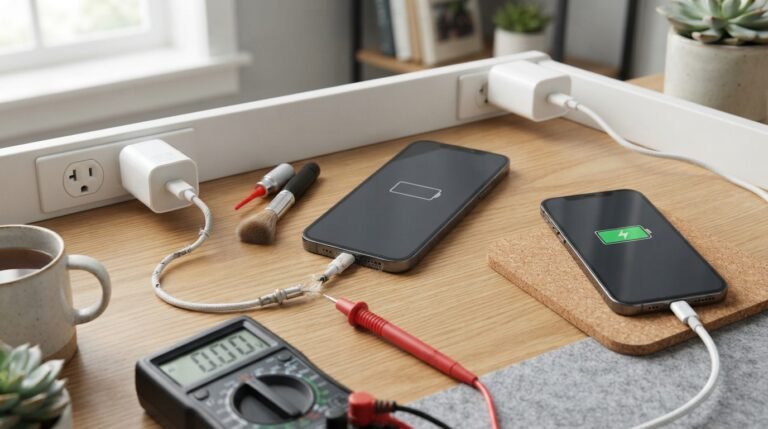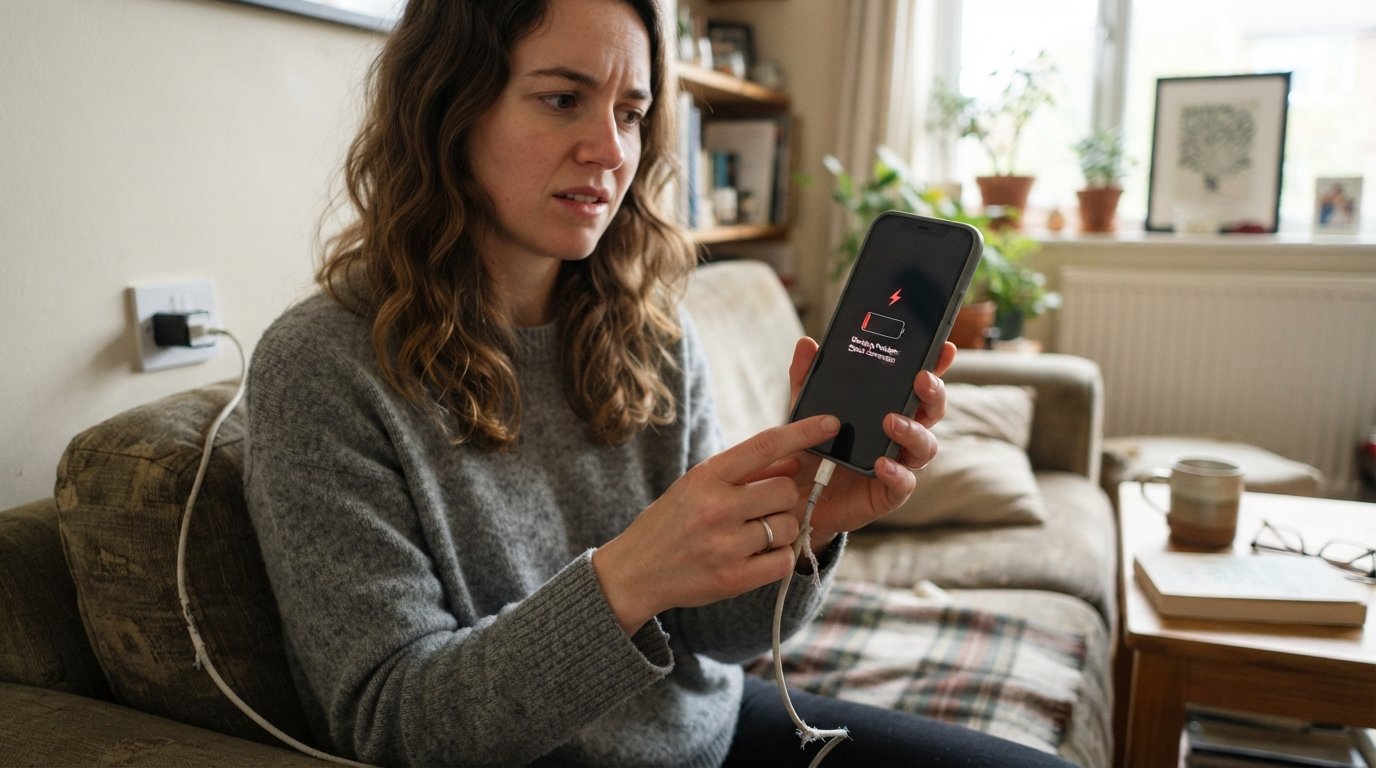
Why won’t my iPhone charge? If your iPhone is plugged in but the battery percentage is not increasing, you’re not alone. An iPhone may stop charging because of a damaged cable, dirty charging port, software problems, an incompatible charger, overheating, battery issues, or a faulty charging accessory.
The good news is that many iPhone charging problems can be fixed at home without professional repair.
In this guide, we’ll explain why your iPhone won’t charge, what the different charging symptoms mean, and the steps you can take to get your iPhone charging again.
Why Won’t My iPhone Charge?
There are several possible reasons your iPhone is not charging. The most common include:
- Damaged or faulty charging cable
- Defective power adapter
- Dirty or blocked charging port
- Loose connection
- Damaged Lightning or USB-C port
- Unsupported or low-quality charging accessories
- iOS software glitches
- iPhone overheating or extreme temperatures
- Optimized Battery Charging or charging limits
- Completely drained battery
- Battery degradation or hardware failure
Before assuming your iPhone needs repair, try the troubleshooting methods below.
1. Check Your Charging Cable
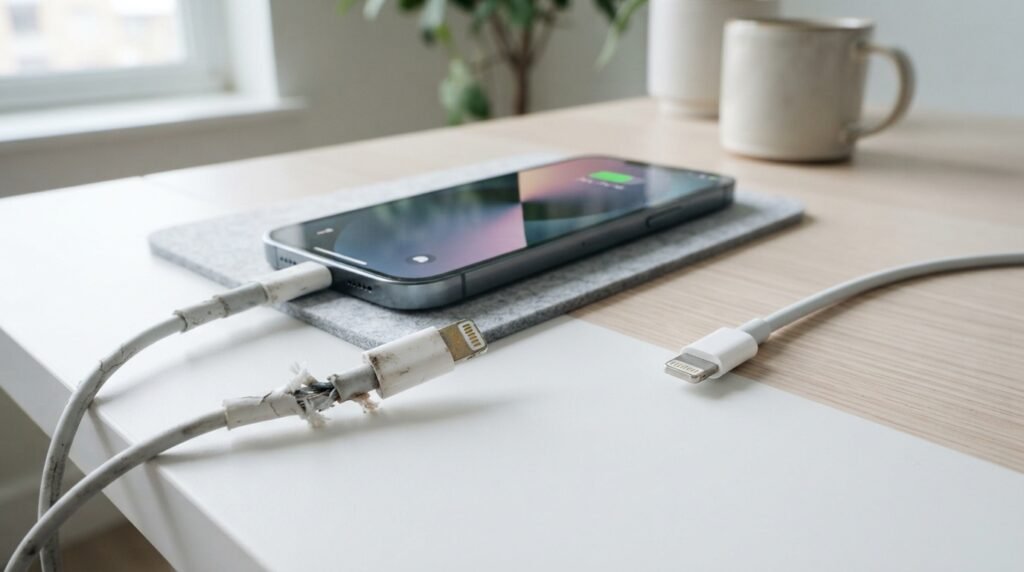
A damaged charging cable is one of the most common reasons an iPhone won’t charge.
Inspect the cable carefully for:
- Frayed wires
- Bent connectors
- Cracks or visible damage
- Loose connections
- Dirt or corrosion around the connector
Try using another compatible charging cable. If your iPhone starts charging with the second cable, the original cable is probably the problem.
For the best results, use a reliable, Apple-certified or compatible charging cable rather than a damaged or extremely cheap alternative.
2. Try a Different Power Adapter
Sometimes the charging cable isn’t the problem—the power adapter may be defective.
Disconnect your iPhone and try:
- A different wall adapter.
- A different power outlet.
- Another compatible charging cable.
- A computer USB port or another known-working power source.
If your iPhone charges normally with another adapter, your original charger may need to be replaced.
3. Clean the iPhone Charging Port
A dirty charging port can prevent the cable from making proper contact.
Dust, lint, and debris can accumulate inside the charging port, especially if you frequently keep your iPhone in a pocket or bag.
If the cable feels loose or doesn’t fully connect, inspect the port for visible debris.
Important: Avoid inserting sharp metal objects into the charging port. You could damage the contacts or other internal components.
If the port is heavily clogged, damaged, wet, or corroded, professional cleaning or repair may be safer.
4. Make Sure the Cable Is Connected Properly
A simple connection problem can make it appear that your iPhone isn’t charging.
Disconnect the cable and reconnect it firmly. Make sure:
- The connector is fully inserted.
- The cable isn’t being pulled sideways.
- The adapter is securely connected to the power source.
- The outlet is working.
- There is no visible damage to the charging port.
If charging starts and stops when you move the cable, the cable or charging port may be damaged.
5. Restart Your iPhone
A temporary iOS software glitch can sometimes interfere with charging.
Restart your iPhone and connect the charger again after it turns back on.
If the device is frozen or doesn’t respond normally, you may need to perform a force restart. The exact button sequence depends on your iPhone model.
After restarting, check whether the battery percentage begins increasing.
6. Force Restart Your iPhone If It Won’t Respond
If your iPhone has a black screen and appears completely unresponsive, don’t immediately assume the battery is permanently dead.
For many newer iPhone models, you can try a force restart:
- Quickly press and release the Volume Up button.
- Quickly press and release the Volume Down button.
- Press and hold the Side button.
- Keep holding until the Apple logo appears.
Then connect the iPhone to a known-working charger and give it some time.
An iPhone with a completely depleted battery may need several minutes before the charging indicator appears.
7. Check Whether Your iPhone Is Too Hot or Too Cold
Temperature can affect iPhone charging.
If your iPhone becomes unusually hot while charging, charging may temporarily pause to protect the battery.
Similarly, very cold conditions can affect battery performance and charging.
If the device feels unusually hot, unplug it and allow it to return to a normal temperature before trying again.
Avoid placing an overheating iPhone in a refrigerator or freezer. Sudden temperature changes can cause additional problems.
8. Check for a Liquid Detection Warning
If your iPhone detects liquid in its charging connector, it may prevent wired charging to reduce the risk of damage.
If you see a liquid-detection warning:
- Disconnect the charging cable.
- Allow the connector and cable to dry naturally.
- Keep the charging port facing downward where appropriate.
- Do not use external heat to dry the port.
- Do not insert objects into the connector.
Give the device time to dry before attempting to charge it again.
If the warning repeatedly appears even when the port appears dry, the connector may need inspection.
9. Check Your iPhone’s Charging Settings
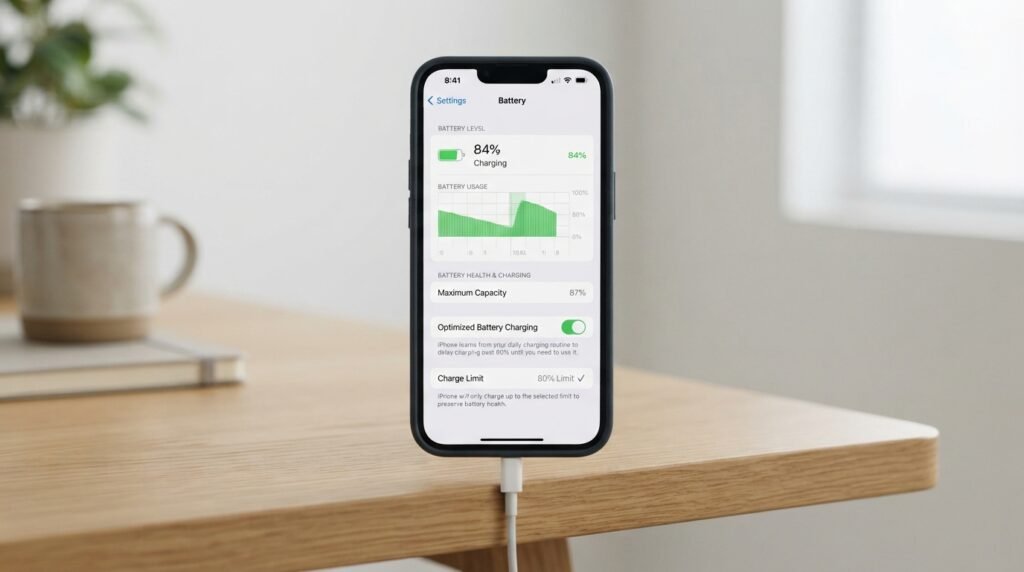
Sometimes an iPhone may appear to stop charging even though there isn’t a fault.
Modern iPhones include battery-management features designed to reduce battery aging. Depending on your iPhone model and iOS version, features such as Optimized Battery Charging or a Charge Limit can affect when charging stops.
For example, your iPhone may pause charging around a particular battery percentage instead of immediately reaching 100%.
Check:
Settings → Battery
Then look for available charging and battery-health options.
If the iPhone displays a message explaining why charging has paused, follow the instructions shown on the screen.
10. Try Wireless Charging
If your iPhone supports wireless charging, testing a compatible wireless charger can help identify the source of the problem.
If wireless charging works but a cable doesn’t, the issue could be related to:
- The charging cable
- Power adapter
- Charging port
- Cable connection
- Debris inside the port
If neither wired nor wireless charging works, the problem may be related to the battery, software, power-management system, or another hardware component.
Why Is My iPhone Charging but the Battery Percentage Isn’t Increasing?
If your iPhone shows the charging symbol but the battery percentage doesn’t increase, several things could be happening.
The charger may not be providing enough power to keep up with the phone’s energy consumption. This can happen when you’re using demanding apps, gaming, streaming video, or using navigation while connected to a weak power source.
Other possibilities include:
- Faulty charging cable
- Weak power adapter
- High device temperature
- Battery degradation
- Software issues
- Charging optimization features
Try turning off demanding apps, using a reliable power adapter, and leaving the iPhone connected for a while.
Why Does My iPhone Say It’s Charging but Not Actually Charging?
An iPhone can display a charging indicator while the battery percentage remains unchanged.
If this happens, check the entire charging setup rather than focusing only on the phone.
Test:
iPhone → cable → power adapter → outlet
Replace each component one at a time with a known-working alternative.
This helps determine whether the problem is caused by the iPhone or by one of the charging accessories.
Why Won’t My iPhone Charge Past 80%?
If your iPhone consistently stops charging around 80%, this doesn’t necessarily mean the battery or charger is broken.
Battery-management features can intentionally limit charging in certain situations to help reduce battery aging.
Check your battery and charging settings for features such as Optimized Battery Charging or a Charge Limit, depending on your iPhone model and iOS version.
If your iPhone is unusually warm, temperature management may also temporarily limit charging.
Why Won’t My iPhone Charge When It Is Completely Dead?
When an iPhone battery is completely depleted, the screen may remain black immediately after connecting the charger.
Try the following:
- Connect the iPhone to a reliable wall charger.
- Make sure the cable and adapter work with another device if possible.
- Leave the iPhone connected for at least several minutes.
- Check for a battery or charging icon.
- Try a force restart if the screen remains unresponsive.
If the iPhone still shows no signs of life after trying multiple known-working charging accessories, hardware damage or a severely depleted battery may be involved.
Why Won’t My iPhone Charge After Getting Wet?
Water or another liquid can interfere with the charging connector.
If your iPhone recently became wet, don’t immediately connect a cable to the port.
Instead, disconnect the charger and allow the device and connector to dry naturally. Avoid using a hair dryer, compressed air, or inserting objects into the port.
If your iPhone continues displaying a liquid-detection warning after adequate drying time, consider having it inspected.
Why Does My iPhone Keep Disconnecting While Charging?
If your iPhone repeatedly starts and stops charging, the problem may be caused by an unstable connection.
Common causes include:
- Damaged cable
- Loose charging port
- Dirt or lint in the port
- Faulty adapter
- Damaged connector
- Electrical outlet problems
Try another cable and power adapter first. If the problem continues with multiple known-working accessories, the iPhone’s charging port may require professional inspection.
How to Tell If Your iPhone Charger Is Bad
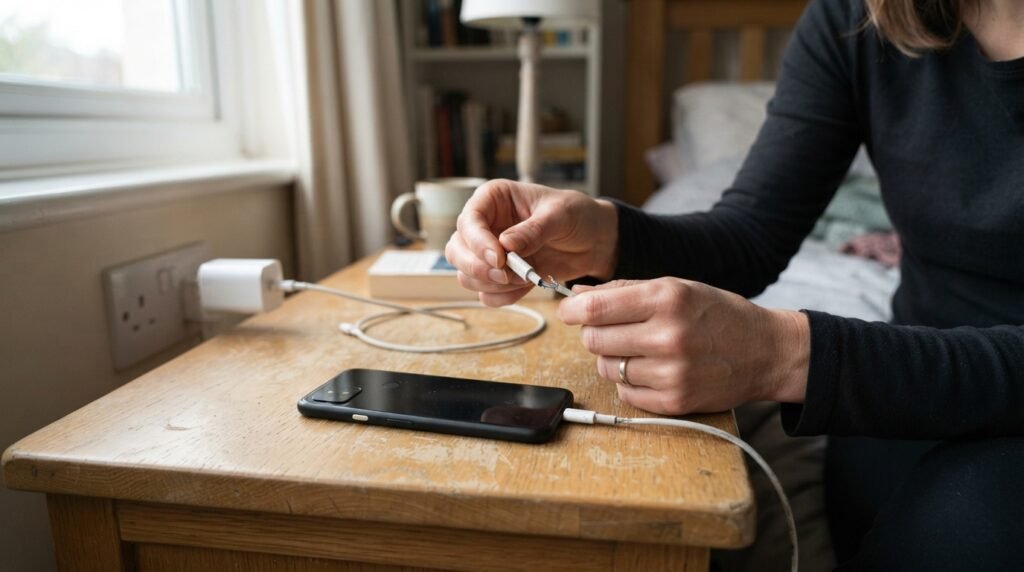
Your charger or cable may be faulty if:
- Another cable charges your iPhone normally.
- The cable only works when positioned at a certain angle.
- The adapter becomes unusually hot.
- Charging repeatedly starts and stops.
- The cable has visible damage.
- Other devices also fail to charge from the same adapter.
Testing the accessories separately is one of the quickest ways to identify the problem.
When Should You Replace Your iPhone Battery?
An aging battery can eventually affect charging and overall iPhone performance.
Check:
Settings → Battery → Battery Health & Charging
Depending on your iPhone model and iOS version, this section can provide information about battery condition and charging behavior.
If your battery health is significantly degraded, the iPhone shuts down unexpectedly, charges abnormally, or doesn’t hold a charge for long, battery service may be worth considering.
When Should You Get Professional iPhone Repair?
You should consider professional assistance if:
- The iPhone won’t charge with multiple known-working chargers.
- The charging port is physically damaged.
- The phone was exposed to significant liquid.
- The iPhone becomes extremely hot while charging.
- The battery appears swollen or physically damaged.
- The device repeatedly shuts down.
- Wireless and wired charging both fail.
- The iPhone shows no response after extended charging and troubleshooting.
If the battery appears swollen, stop using and charging the device and seek professional service.
Quick Fix: iPhone Won’t Charge Checklist
If you’re looking for the fastest troubleshooting process, try these steps in order:
- Check the charging cable.
- Try another compatible cable.
- Try another power adapter.
- Try another electrical outlet.
- Inspect the charging port for debris.
- Restart the iPhone.
- Force restart the iPhone if it is unresponsive.
- Let an overheated or very cold iPhone return to a normal temperature.
- Check for a liquid-detection warning.
- Check Battery and charging settings.
- Try compatible wireless charging if available.
- Seek professional repair if none of these steps work.
Frequently Asked Questions
1. Why won’t my iPhone charge even though the charger is plugged in?
The problem could be the cable, adapter, charging port, outlet, software, temperature, or battery. Test the iPhone with another known-working cable and adapter first.
2. Why is my iPhone not charging but showing the battery icon?
A battery icon can appear while the iPhone receives insufficient or interrupted power. Try another cable, adapter, and outlet, then leave the device connected for several minutes.
3. How do I fix an iPhone that won’t charge?
Start by testing the cable and power adapter, checking the charging port, restarting the iPhone, and checking for temperature or liquid-related charging restrictions.
4. Can a dirty charging port stop an iPhone from charging?
Yes. Dust, lint, and other debris can interfere with the connection between the charging cable and the charging port.
5. Why does my iPhone only charge at a certain angle?
This can indicate a damaged cable, connector, or charging port. Avoid forcing the cable into a particular position because continued use may worsen the damage.
6. Why does my iPhone stop charging at 80%?
Charging optimization, a charge limit, or temperature management can cause an iPhone to temporarily stop or limit charging around 80%. Check your Battery settings for more information.
7. How long should I leave a dead iPhone charging?
Connect it to a reliable charger and give it some time to respond. If it remains completely unresponsive after testing multiple known-working charging accessories, further troubleshooting or professional service may be necessary.
Final Thoughts
If you’re wondering “Why won’t my iPhone charge?”, don’t assume that the battery is broken immediately. In many cases, the problem is something simple such as a damaged cable, faulty adapter, dirty charging port, software glitch, temperature issue, or charging setting.
Start with the easiest solutions: test another cable and adapter, check the charging port, restart the iPhone, and look for temperature or liquid warnings. If your iPhone still won’t charge after these steps, especially when multiple known-working chargers fail, the problem may be hardware-related and professional service may be the safest option.
About the Author