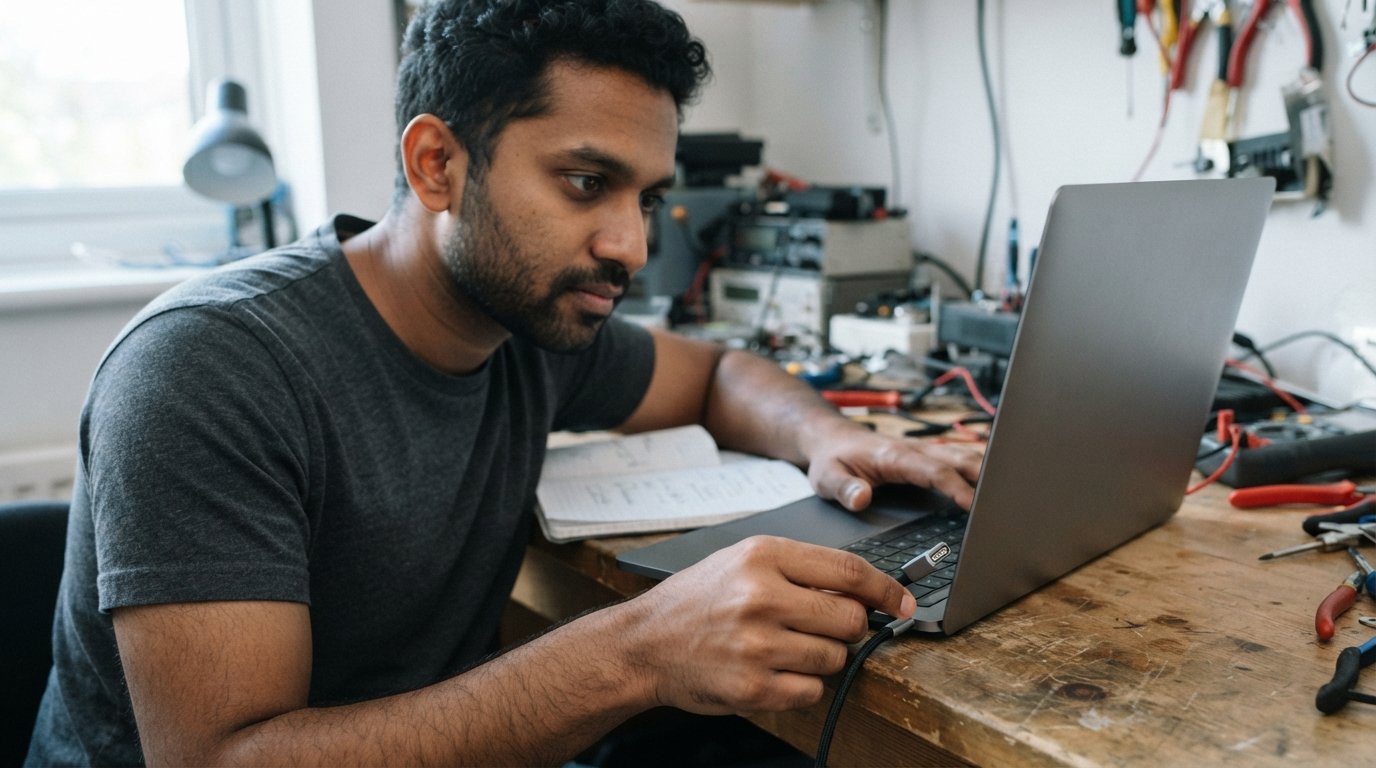
If your Surface Laptop 2 charging port is not working correctly, charging problems can be frustrating. The laptop may fail to recognize the charger, charge intermittently, or stop charging altogether. Fortunately, many charging issues can be identified with a few simple checks before considering a repair or replacement.
The Surface Laptop 2 uses Microsoft’s proprietary Surface Connect port for charging. Understanding how this port works, what causes charging problems, and how to troubleshoot it can help you determine whether the issue is with the charger, port, software, or internal hardware.
What Is the Surface Laptop 2 Charging Port?
The Surface Laptop 2 charging port is the magnetic Surface Connect port located on the right side of the laptop. It is designed to connect with compatible Surface chargers using a magnetic connection.
The magnetic design makes connecting and disconnecting the charger convenient. Instead of requiring a traditional barrel-style connector, the Surface Connect system attaches to the laptop magnetically and helps reduce the chance of the laptop being pulled if the cable is accidentally tugged.
The charging port is primarily used to:
- Connect the Surface Laptop 2 to its power adapter
- Charge the internal battery
- Provide power to the laptop while it is being used
- Support compatible Surface accessories and docking hardware
Where Is the Surface Laptop 2 Charging Port Located?
The Surface Laptop 2 charging port is located on the right side of the device. It is a small magnetic connector designed specifically for Microsoft’s Surface Connect charging system.
When you bring the compatible charger close to the port, the magnetic connector should attach securely. The charging indicator on the connector can help you determine whether the charger is receiving power and making a proper connection.
If the charger does not attach normally, disconnects easily, or only works when the cable is positioned at a particular angle, the charger or charging connection may require inspection.
Does Surface Laptop 2 Use USB-C for Charging?
The original Surface Laptop 2 does not use a USB-C port as its primary charging connection. Its standard charging method is the Surface Connect port.
This is important when purchasing a replacement charger. A generic USB-C charger should not automatically be assumed to be compatible with the Surface Laptop 2.
The laptop may have USB ports for connecting peripherals, but these should not be confused with the dedicated Surface Connect charging port.
What Charger Does the Surface Laptop 2 Use?
The Surface Laptop 2 is designed to work with a compatible Microsoft Surface power supply that connects through the Surface Connect port.
When replacing a charger, check the following:
- Connector compatibility
- Output voltage
- Wattage
- Microsoft Surface compatibility
- Cable and connector condition
- Charger quality and safety certification
Using a charger that is not designed for the laptop can lead to unreliable charging or other power-related problems. A compatible replacement is generally the safest choice.
How Do You Know If the Surface Laptop 2 Charging Port Is Working?

A functioning charging port should establish a stable connection with a compatible Surface charger.
Some signs that the Surface Laptop 2 charging port is working normally include:
- The magnetic charger attaches securely.
- The charger indicator responds normally.
- Windows recognizes that the laptop is connected to power.
- The battery begins charging.
- The laptop continues receiving power without repeated disconnections.
If the battery icon repeatedly changes between charging and not charging, the problem could involve the charger, charging port, battery, or software.
Why Is My Surface Laptop 2 Not Charging?
There are several possible reasons why a Surface Laptop 2 may not charge.
1. Damaged Charger
The charging adapter or cable can become damaged through regular use. Look for visible cuts, bent sections, exposed wiring, or a loose connector.
2. Dirty Charging Port
Dust and debris can interfere with the magnetic connection. Even a small amount of buildup can prevent the charger from making reliable contact.
3. Damaged Surface Connect Port
If the port has been physically damaged, the charger may fail to connect properly or may disconnect when the laptop is moved.
4. Battery Problems
A worn or failed battery can cause charging symptoms even when the charger and port are functioning correctly.
5. Software or Firmware Issues
Windows or Surface firmware problems can sometimes affect battery and power management. Restarting the laptop and installing available system updates may resolve software-related charging behavior.
6. Electrical or Power Adapter Problems
A faulty wall outlet, extension cord, or power adapter can also make it appear that the charging port is defective.
How to Troubleshoot the Surface Laptop 2 Charging Port
Before replacing or repairing the port, work through these basic troubleshooting steps.
Step 1: Check the Wall Outlet
Plug another device into the same outlet to confirm that it is supplying power.
Step 2: Inspect the Charger
Examine the entire Surface charger for physical damage. Pay particular attention to the cable and magnetic connector.
Step 3: Clean the Connection Area
Turn off the laptop and disconnect the charger. Check the Surface Connect port for visible dust or debris.
Avoid inserting sharp metal objects into the charging port, as this can damage the contacts.
Step 4: Reconnect the Charger
Reconnect the charger firmly and check whether the charging indicator behaves normally.
Step 5: Restart the Laptop
A simple restart can resolve temporary power-management or Windows-related issues.
Step 6: Install Available Updates
Check Windows Update and install applicable Surface firmware and system updates. Outdated firmware can sometimes contribute to hardware-related behavior.
Step 7: Test With a Known-Good Compatible Charger
If possible, test the laptop with another compatible Surface charger. If another charger works normally, the original charger may be the source of the problem.
Can the Surface Laptop 2 Charging Port Be Replaced?
A damaged Surface Laptop 2 charging port may be repairable, but replacement is not necessarily a simple DIY procedure.
The charging system is integrated into the laptop’s hardware, and opening the device can be complicated. Attempting to repair the port without the appropriate tools and experience can result in additional damage.
If the laptop charges only when the connector is held in a specific position, the port may have a physical connection problem. In that situation, professional inspection is generally safer than repeatedly bending or forcing the connector.
How Much Does a Surface Laptop 2 Charging Port Repair Cost?
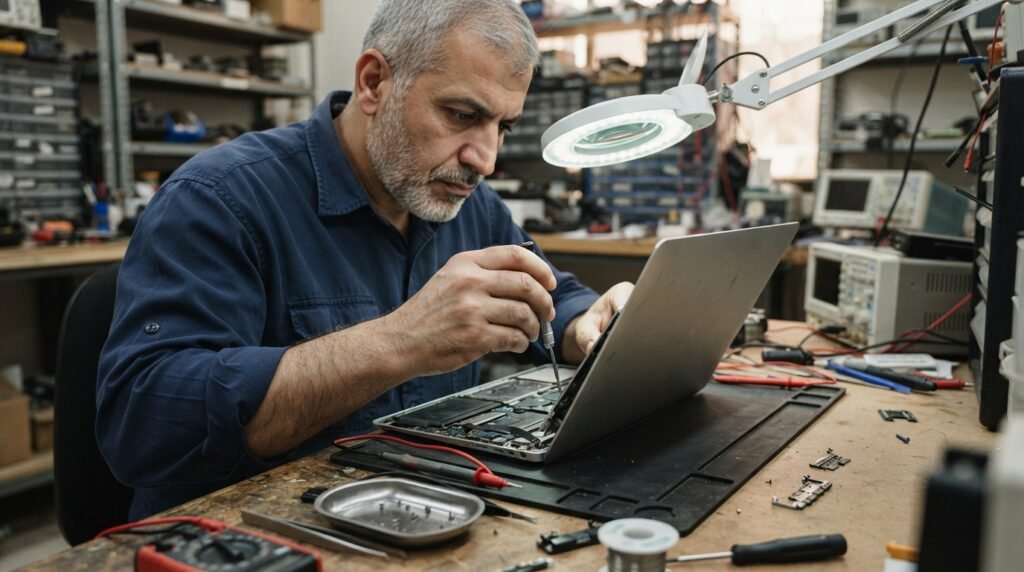
The cost of repairing a Surface Laptop 2 charging port depends on the nature of the failure and the repair provider.
The final price can vary based on:
- Whether the charger or port is defective
- Availability of replacement parts
- Labor charges
- Damage to surrounding components
- Whether the repair requires additional motherboard work
Before approving a repair, ask the technician to diagnose the problem first. A laptop that appears to have a bad charging port may actually have a faulty charger, battery, or power-management issue.
Surface Laptop 2 Charging Port vs. USB Charging
The Surface Connect port is different from conventional USB charging.
| Feature | Surface Connect | USB-C |
|---|---|---|
| Surface Laptop 2 primary charging method | Yes | No |
| Magnetic connector | Yes | No |
| Designed specifically for Surface devices | Yes | No |
| Reversible connection | Yes | Yes |
| Common modern charging standard | No | Yes |
For the Surface Laptop 2, the Surface Connect system remains the standard charging solution.
Can a Loose Charging Port Cause Charging Problems?
Yes. A loose or damaged connection can cause intermittent charging.
Typical symptoms include:
- Charging stops when the laptop moves.
- The charger repeatedly connects and disconnects.
- The laptop charges only at a certain angle.
- The charging indicator turns off unexpectedly.
- The battery percentage does not increase consistently.
These symptoms do not automatically prove that the port itself is damaged. Testing the charger and checking the port for debris should come first.
How to Prevent Surface Laptop 2 Charging Port Damage
Proper handling can help extend the life of the charging connection.
Avoid pulling the charger by the cable. Disconnect it by holding the connector itself.
Keep the charging area clean and avoid placing unnecessary pressure on the magnetic connector. When transporting the laptop, disconnect the charger rather than leaving the cable attached.
It is also a good idea to avoid using visibly damaged charging cables or adapters.
Frequently Asked Questions
1. What charging port does the Surface Laptop 2 have?
The Surface Laptop 2 uses Microsoft’s proprietary Surface Connect port as its primary charging port.
2. Where is the charging port on Surface Laptop 2?
The charging port is located on the right side of the Surface Laptop 2.
3. Can I charge Surface Laptop 2 through USB-C?
The Surface Laptop 2 was designed to charge through its Surface Connect port rather than USB-C.
4. Why is my Surface Laptop 2 charger not connecting?
Check the charger, magnetic connector, Surface Connect port, and power outlet. Dust, physical damage, or a defective adapter can prevent a reliable connection.
5. Why does my Surface Laptop 2 charge only at certain angles?
This can indicate a damaged or loose charging connection, although a damaged charger or cable can produce similar symptoms.
6. Should I replace the charging port myself?
Port repair can require opening the laptop and working with delicate internal components. If you do not have appropriate repair experience and tools, professional service is the safer option.
7. Is the Surface Connect port magnetic?
Yes. The Surface Laptop 2 uses a magnetic Surface Connect charging connection.
Final Thoughts
The Surface Laptop 2 charging port is an important part of the laptop’s power system and uses Microsoft’s Surface Connect technology. If your laptop is not charging, do not immediately assume that the port needs replacement. Start by checking the power outlet, charger, magnetic connector, port condition, battery, and software.
If basic troubleshooting does not solve the problem and the charging connection remains intermittent or completely inactive, professional diagnosis can help determine whether the charger, charging port, battery, or another internal component needs attention. Understanding these common Surface Laptop 2 charging port problems can save time, prevent unnecessary repairs, and help you choose the right solution for your device.
About the Author