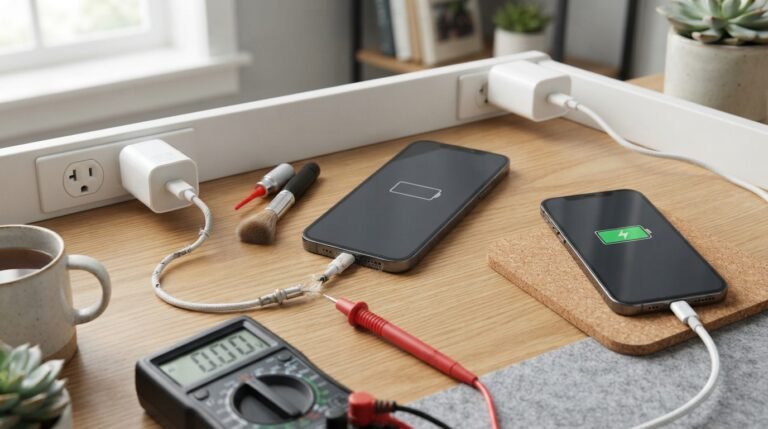
If your Mac won’t turn on but is charging, it can be frustrating because seeing a charging indicator may make it seem like the computer should start normally. However, a Mac can receive power while still failing to boot because of a drained battery, software problem, display issue, charging accessory problem, or hardware fault.
The good news is that several troubleshooting steps can help determine why your Mac is not turning on. This guide explains what to check when your MacBook won’t turn on but is charging, including power connections, startup procedures, accessories, recovery options, and situations where professional service may be necessary.
Why Won’t My Mac Turn On but Is Charging?
A Mac that appears to be charging but does not start can have several possible causes.
Common possibilities include:
- Battery is deeply discharged
- Charger or cable is malfunctioning
- Power adapter is not providing sufficient power
- Mac is frozen
- macOS has encountered a startup problem
- Display is not working
- External accessories are interfering with startup
- Power-management hardware has encountered an issue
- Internal hardware has failed
The first step is determining whether the Mac is actually receiving sufficient power and whether it is completely inactive or simply failing to display an image.
What Should You Do First?
Before attempting advanced troubleshooting, perform a few simple checks.
1. Connect the Mac to Power
Connect the Mac directly to a working electrical outlet using a compatible power adapter and charging cable.
If possible, avoid questionable extension cords, hubs, or third-party charging accessories during troubleshooting.
2. Check for Physical Signs of Power
Look for any indication that the Mac is responding, such as:
- Charging indicator
- Startup sound
- Keyboard backlight
- Trackpad response
- Fan noise
- Screen illumination
- Caps Lock indicator
If there is absolutely no response, the problem may be related to power or hardware.
3. Wait Before Trying Again
If the battery was completely depleted, leave the Mac connected to power for a while before attempting to turn it on again.
A deeply discharged battery may not immediately provide enough energy for normal startup.
Check the Mac Charger and Cable
A charging symbol does not always prove that the Mac is receiving enough power to start.
A damaged or incompatible adapter or cable can cause charging problems.
Inspect the:
- Power adapter
- USB-C or MagSafe cable
- Charging connector
- Mac charging port
- Electrical outlet
Look for visible damage, bent connectors, fraying, unusual heat, or debris.
If you have access to a known-compatible charger, testing it can help determine whether the original charging equipment is responsible.
Try a Different Power Outlet
A simple outlet problem can sometimes be mistaken for a Mac hardware failure.
Connect the charger to another known-working outlet and try again.
If you’re using a power strip, temporarily connect the charger directly to the wall.
Clean the Charging Port Carefully
Dust or debris inside a charging port can interfere with a reliable electrical connection.
If your Mac uses USB-C, inspect the port carefully.
If it uses MagSafe, check the connector and charging port for debris.
Do not insert metal objects into the port or attempt aggressive cleaning that could damage the contacts.
Perform a Normal Power-On
Once the Mac has been connected to power, press the power button or Touch ID button normally.
On some MacBook models, the Touch ID button also functions as the power button.
Give the computer some time to respond.
Avoid repeatedly pressing the button rapidly.
Force Shut Down and Restart the Mac

If the Mac is frozen rather than completely powered off, a forced shutdown may help.
Press and hold the power button until the Mac turns off. Wait several seconds, then press the power button again.
This can resolve certain situations where macOS has stopped responding.
Be aware that a forced shutdown can result in the loss of unsaved work.
MacBook Won’t Turn On but Shows a Charging Symbol
If the MacBook indicates that it is charging but the display remains blank, the computer may not actually be completely powered off.
The issue could involve:
- Display brightness
- Display hardware
- macOS startup
- Sleep/wake problems
- External display configuration
- Firmware or hardware issues
Try increasing the display brightness and disconnecting external monitors or accessories.
Check Whether the Screen Is the Problem
A Mac can sometimes be running even when the built-in display does not show an image.
Look for signs such as:
- Fan activity
- Keyboard illumination
- Trackpad response
- Startup sound
- External display output
If the Mac appears to be running but the screen remains black, the problem may involve the display rather than the power system.
Disconnect All Accessories
External devices can sometimes interfere with startup.
Disconnect:
- USB drives
- External hard drives
- USB hubs
- Printers
- External displays
- Docks
- SD cards
- Audio interfaces
- Other USB or Thunderbolt devices
Leave only the required power connection attached and try starting the Mac again.
If it starts normally, reconnect accessories one at a time to identify the problematic device.
Try Starting in macOS Recovery
If the Mac receives power but cannot boot normally, macOS Recovery may provide useful troubleshooting options.
The startup method depends on whether your Mac has:
- Apple silicon
- Intel processor
Apple Silicon Macs
On compatible Apple silicon Macs, shut down the Mac and then press and hold the power button until startup options appear.
From there, you can access available recovery options.
Intel Macs
On many Intel-based Macs, startup key combinations can be used to access recovery or other startup modes.
The exact procedure depends on the Mac model and macOS version.
Use Safe Mode When Appropriate
Safe Mode can help determine whether startup software or certain system components are causing the problem.
Safe Mode starts macOS using a more limited set of software and performs certain checks.
The procedure differs between Apple silicon and Intel Macs, so use the appropriate method for your Mac.
If the Mac starts successfully in Safe Mode but not normally, software or startup items may be involved.
Reset the SMC on Compatible Intel Macs
The System Management Controller (SMC) manages certain low-level power and hardware functions on Intel-based Macs.
Some Intel Macs can benefit from an SMC reset when experiencing power-related problems.
However, Apple silicon Macs handle these functions differently and do not use the same traditional SMC-reset procedure.
Therefore, don’t apply an Intel-specific SMC reset procedure to an Apple silicon Mac.
Try an NVRAM Reset on Compatible Intel Macs
NVRAM stores certain settings that can affect startup and hardware configuration on compatible Intel-based Macs.
An NVRAM reset can sometimes help with particular startup problems.
This troubleshooting option is primarily relevant to Intel Macs; Apple silicon Macs handle startup settings differently.
Check for a Black Screen
A MacBook black screen but charging situation can have several explanations.
The Mac may be:
- Starting but not displaying correctly
- Frozen
- Sleeping
- Experiencing a display problem
- Having a graphics-related issue
- Encountering a macOS startup failure
First, disconnect external devices and try a normal restart.
If you hear or see signs that the Mac is running while the display remains black, professional diagnosis may be necessary.
MacBook Air Won’t Turn On but Is Charging
If your MacBook Air won’t turn on but is charging, the same basic troubleshooting process applies.
Check:
- Charger
- Cable
- Power outlet
- Charging port
- Battery condition
- External accessories
- Display
- Startup behavior
The exact recovery and diagnostic procedures depend on whether the MacBook Air uses an Intel processor or Apple silicon.
MacBook Pro Won’t Turn On but Is Charging
If your MacBook Pro won’t turn on but is charging, start with the same basic power checks.
Newer MacBook Pro models may use Apple silicon, while older models can use Intel processors.
This distinction matters because startup recovery and hardware-reset procedures differ between the two architectures.
Could the Battery Be the Problem?
Yes.
A battery can show signs of charging while still having a problem that prevents normal startup.
Potential battery-related issues include:
- Deep discharge
- Battery degradation
- Battery failure
- Charging-system problems
- Internal battery connection problems
If the Mac works normally only when connected to power, the battery may require evaluation.
How Do You Know if a Mac Battery Is Dead?

Possible signs of a failing battery include:
- Mac shuts down unexpectedly
- Battery percentage changes unusually
- Mac only works while connected to power
- Battery does not hold a charge
- Charging behavior is abnormal
- Mac becomes unusually hot
A battery problem isn’t always the cause of a no-start situation, so diagnosis may be necessary.
Can a Faulty Charger Make a Mac Look Dead?
Yes.
If a charger cannot provide adequate power, the Mac may appear completely unresponsive.
This is why testing a known-compatible charger and cable is one of the easiest troubleshooting steps.
For USB-C Macs, remember that not every USB-C power adapter provides the same power output.
Check the Charger Wattage
Using an adapter with insufficient power can cause charging or performance issues.
For troubleshooting, use a charger that meets the requirements of your specific Mac model.
If possible, use the Apple adapter originally supplied with the Mac or a reputable compatible adapter with appropriate specifications.
What If the Mac Gets Hot but Won’t Turn On?
Unusual heat combined with failure to start can indicate a hardware or power-management problem.
If the Mac becomes excessively hot, develops a burning smell, or shows signs of physical damage, disconnect it from power and stop using it.
Do not continue repeatedly attempting to power on a device that appears unsafe.
Check for Liquid or Physical Damage
Think about whether the Mac has recently experienced:
- Liquid exposure
- A drop
- Impact
- Pressure damage
- Overheating
- Charger damage
Physical or liquid damage can affect internal components and may not always be visible from the outside.
A Mac with suspected liquid damage should be professionally inspected.
Try Apple Diagnostics
Apple Diagnostics can help identify certain hardware problems.
The startup procedure varies depending on whether the Mac uses Apple silicon or Intel.
If you can access Apple Diagnostics, it may provide an error code or information that helps identify a hardware problem.
Write down any diagnostic code displayed before seeking service.
Could macOS Be Preventing Startup?
Yes.
A corrupted system installation, failed update, startup disk issue, or other software problem can prevent macOS from loading correctly.
If the Mac reaches a startup screen, Apple logo, progress bar, or recovery environment, software troubleshooting may be possible.
If it never responds at all, hardware or power-related problems become more likely.
What If the Mac Shows the Apple Logo but Doesn’t Boot?
If the Mac displays the Apple logo but becomes stuck, possible causes include:
- macOS startup problems
- Storage problems
- Failed updates
- Peripheral conflicts
- System-file corruption
Try disconnecting external accessories and using macOS Recovery.
Recovery may provide options to:
- Repair the startup disk
- Reinstall macOS
- Restore from a backup
- Access other troubleshooting tools
Avoid erasing the startup disk unless you understand that doing so can remove your data.
When Should You Contact Apple Support?
Professional assistance is appropriate when:
- The Mac shows no response after basic troubleshooting
- A known-good charger does not help
- The battery appears damaged
- The Mac suffered liquid damage
- The Mac experienced a significant drop
- The screen remains black despite signs of operation
- Apple Diagnostics reports a hardware error
- Recovery cannot start
- The Mac repeatedly shuts down
- There is unusual heat, smoke, or burning odor
If your data is important, avoid unnecessary repair or erase procedures before considering data recovery options.
Frequently Asked Questions
1. Why is my Mac charging but not turning on?
The Mac may have a deeply discharged or faulty battery, charger problem, software startup failure, display issue, or hardware problem. Start by checking the charger, outlet, cable, and power button.
2. How do I force my Mac to turn on?
If the Mac is unresponsive, press and hold the power button until it shuts down, wait briefly, and then press it again. If this does not work, further troubleshooting may be required.
3. Why is my MacBook screen black but charging?
The Mac could be running while the display is not functioning correctly, or it may be experiencing a startup problem. Disconnect external accessories and check for other signs of activity.
4. Can a dead battery cause a Mac not to turn on?
Yes. A completely discharged, degraded, or defective battery can prevent normal startup.
5. How long should I charge my Mac if it won’t turn on?
Connect it to a compatible power source and allow it some time to charge before trying again. If there is still no response, test the charger, cable, and outlet rather than repeatedly attempting to start it.
6. Can a USB-C charger turn on a MacBook?
A compatible USB-C charger can power and charge supported MacBook models. However, the adapter must provide appropriate power for the Mac.
7. Why does my MacBook show a battery icon but won’t start?
A battery icon generally indicates that the Mac needs additional power before starting. Leave it connected to a compatible charger and check whether the charging connection is working correctly.
8. Will resetting the SMC fix a Mac that won’t turn on?
An SMC reset can help with certain power-related problems on compatible Intel Macs. Apple silicon Macs do not use the traditional Intel SMC-reset procedure.
9. Will I lose my files if my Mac won’t turn on?
Not necessarily. A Mac that won’t start does not automatically mean that its files are lost. Avoid erasing the startup disk unless necessary, especially if you don’t have a backup.
Final Thoughts
If your Mac won’t turn on but is charging, don’t immediately assume that the computer has suffered a major hardware failure. Start with the simplest possibilities: check the power outlet, charger, cable, charging port, and battery. Then disconnect external accessories and attempt a proper restart.
If the Mac still won’t start, the next steps depend heavily on whether you have an Apple silicon Mac or an Intel Mac. Recovery mode, Safe Mode, Apple Diagnostics, and other appropriate troubleshooting tools can help identify software and hardware problems. If there is physical damage, liquid exposure, unusual heat, or no response even with a known-compatible power source, professional service is the safest next step. And if the Mac contains important files, avoid unnecessary erase or reinstall procedures until your data has been protected.
Related Post
- Periodic Table And Charges – Complete Guide to Element Ionic Charges!
- Ps Vita Charger – Complete Guide to Choosing, Using, and Replacing a PS Vita Charger!
- Satechi 145w Usb-C 4-Port Gan Travel Charger – Complete Review and Buying Guide!
About the Author